tradoshi
Communauté francophoneComunidad hispanohablanteComunidade brasileira

App updates

App improvements, as they ship.

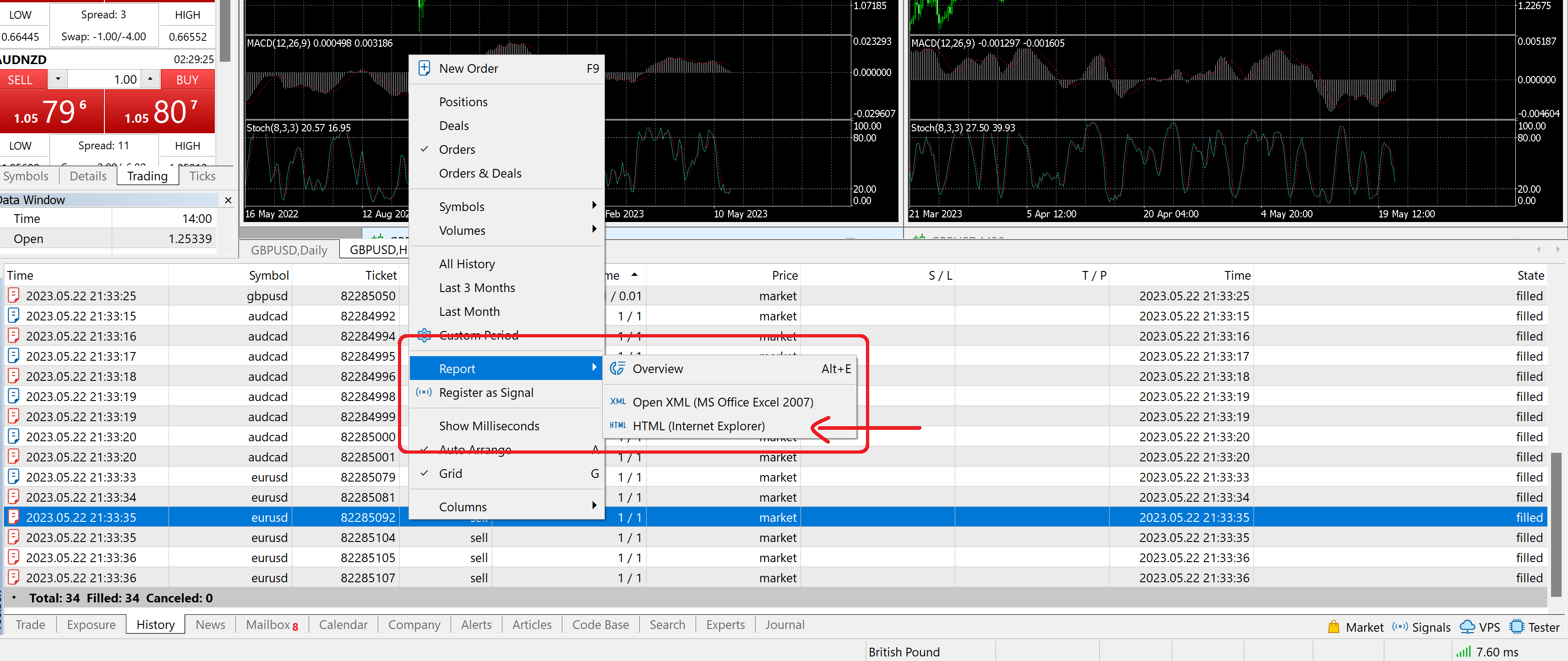
Exporting the history report in MetaTrader 5, to import it into Tradoshi.

Where to find your MetaTrader login details

Not sure what your account number, password or server is when you connect your MetaTrader account? The answer is now right on the connection screen.

A step-by-step guide under the server field
Under the server field, you'll find a step-by-step guide to retrieve your login details at FTMO, Exness, FundedNext, XM, Deriv and IC Markets, and directly in MetaTrader on desktop and on your phone.

Open the guide for your broker or your device, follow the steps and copy your details into Tradoshi. You connect your account without searching everywhere.
Open the topic and reply →
Android 1.3.2 Automatic backtesting. Describe a strategy, Oshi tests it.

Android 1.3.2: automatic backtesting comes to the Premium plan

Android version 1.3.2 brings automatic backtesting to the Premium plan. Describe your strategy in a few sentences, Oshi turns it into rules and the engine tests it on historical market data.

What you'll find
Known strategies: ready-made examples you can test in one tap, then adapt to the way you trade. And in the report, you can open each trade to see how it played out.

Also in this version
TradeZella: bring your whole trade history into Tradoshi. MetaTrader sync: clearer steps while you connect.

Open the topic and reply →
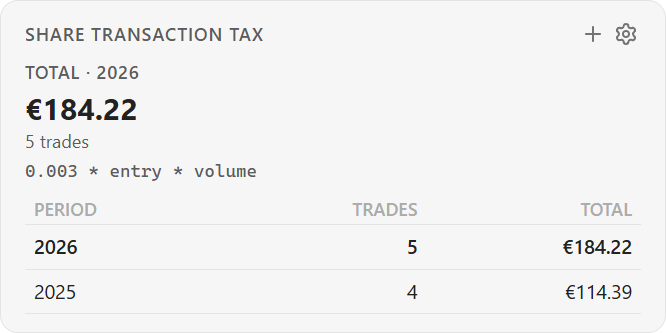
A custom calculation card in Obsidian showing a transaction tax on shares, totalled for 2026 and 2025.

Obsidian plugin: free custom calculation cards

You can now add a custom calculation card to your dashboard in the Obsidian plugin. It adds up a formula of your own across the trades you pick: a transaction tax on shares, fees, the lots you traded, or anything else you want to track.

Choose which trades count
Apply the calculation to all your trades, or narrow it down to certain symbols, a tag or a note property. The card shows the total for the year or the month, with the breakdown of the previous periods so you can compare at a glance.

Each card handles one calculation, so add one per formula you want to follow. Custom calculation cards are included in the free plan.

Learn more: community.obsidian.md/plugins/tradoshi

Open the topic and reply →
Your trading school now has a blog. Articles on your school's website.

Schools can now publish a blog on their website

If you run a trading school on Tradoshi, you can now publish a blog on your school's website.

How it works
You write your articles straight from the School space. Each article gets its own page on your school's site, ready to share with your students and with people discovering your school.

It's a simple way to present your approach, your methods and your news in the same place as the rest of your school.

Learn more: tradoshi.com/en/trading-school-website

Open the topic and reply →
Known strategies ready in the auto backtest. Test a strategy in one click.

Known strategies ready to test in the automatic backtest

The automatic backtest now comes with well-known strategies ready to go. You no longer need to build them from scratch to see how they behave.

The available strategies

iFVG after a liquidity sweep, previous day break and retest, SMT divergence with a 4h FVG, Asian range manipulation and EMA 9 / 21 crossover.

How to use them

Open the automatic backtest and click "Start from an example". Each strategy loads in one click and is tested on the Nasdaq. You can then edit it by hand to fit the way you trade.

Learn more: app.tradoshi.com

Open the topic and reply →
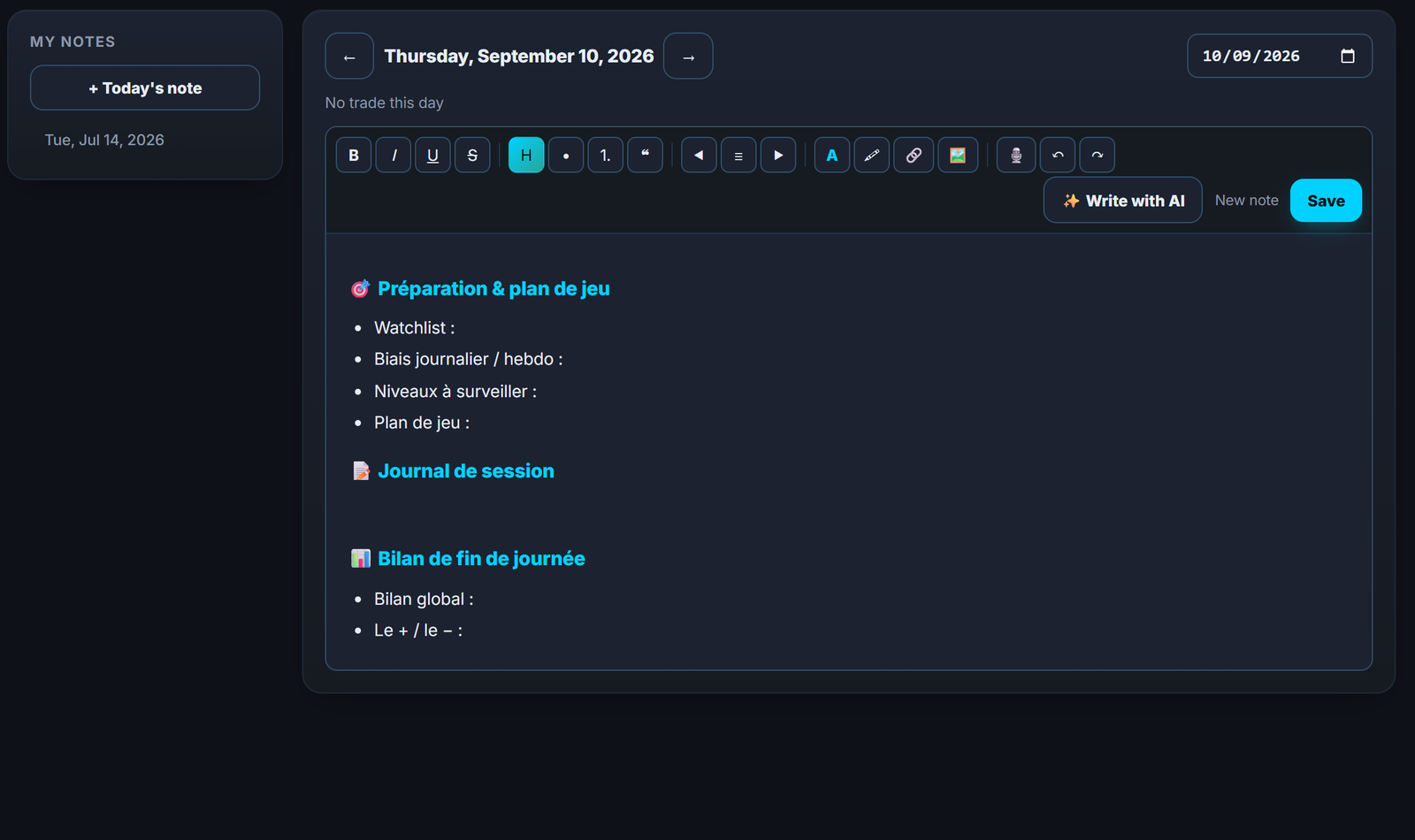
The Tradoshi notebook, one note per day: your P&L linked to what you did, not just the final number.

Your TradeZella notes can be imported too

The TradeZella CSV export brings your trades over, but not your notes. You can now recover them too: trade notes, daily notes and free notes.

How to do it
Go to the Import page and find the card « Also import your TradeZella notes ». Drag the button into your bookmarks, then use it to fetch your notes.

Tradoshi puts each note where it belongs: in the debrief of each trade and in your notebook, without overwriting anything you have already written. That way you keep all your reflection work when you switch journals.

Learn more: app.tradoshi.com

Open the topic and reply →
Top up your AI credits with Mobile Money. Pay from your wallet, no bank card.

Top up your AI credits with Mobile Money

You can now top up your AI credits with Mobile Money. You pay straight from your mobile wallet, no bank card needed.

How it works

Go to Settings > Subscription and choose Mobile Money. The credit packs are shown in your own currency: pick the one that suits you and confirm the payment from your mobile wallet.

That way you keep using Tradoshi's AI with the payment method you already use every day.

Learn more: app.tradoshi.com

Open the topic and reply →
Android 1.3.1 Setup Score, Green Light. Check your trade before you click.

Android 1.3.1: Setup Score and Green Light

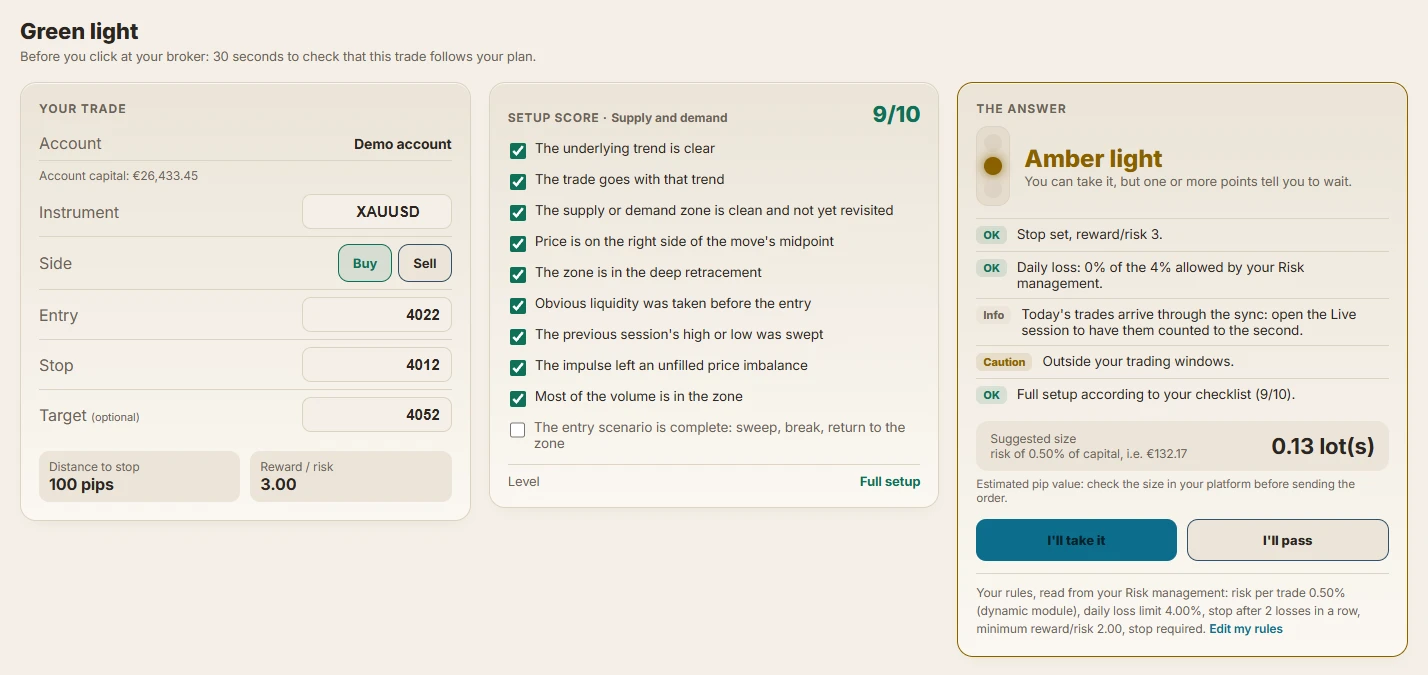
Setup Score
Rate your setup on your own grid before you know the outcome. Then see what each rating actually earns you, so you know whether your best setups really are your best.

Green Light
Check your trade before you click, against your rules and with a suggested size for your account.

Also in this version
Tradoshi Excel template: import and export your journal using our template. For Brazil: Profit statements and notas de corretagem (PDF), with WIN and WDO mini contracts. And when importing, a second file can be added to the first or replace it, your choice.

Open the topic and reply →
Your full history in one click. Stats on everything you traded.

Your full history in one click

When the « Import from » date hides trades Tradoshi has already read from your broker, your account now tells you: you see how many trades are not displayed.

Bring them back in one click

A « Show full history » button puts them back in your account. Your stats then cover everything you traded, without you having to change the date by hand.

Trades you removed yourself stay removed: the button leaves them alone.

Open the topic and reply →
A simpler sign-up. No need to retype your email.

A simpler sign-up

Creating your Tradoshi account is now smoother, especially if you confirm your email address later.

Email confirmation
When you come back to the tab, the waiting page reopens on its own, or offers to log you in with your address already filled in. No need to type it again.

Profile and notifications
The profile screen now tells you what's missing to continue. And the notifications prompt waits for your first import or your first connected account instead of jumping in first.

Open the topic and reply →
The Sunday email only if you want it. One concrete idea each week.

The Sunday email, only if you want it

At the end of the welcome steps in the app, a window offers you the Sunday email: one concrete idea for your trading and what's new at Tradoshi, once a week.

Your call
You answer yes or no, and you can turn it on or off at any time in Settings > Notifications.

Emails tied to your account, like your sign-up confirmation or renewal reminders, stay the same.

Open the topic and reply →
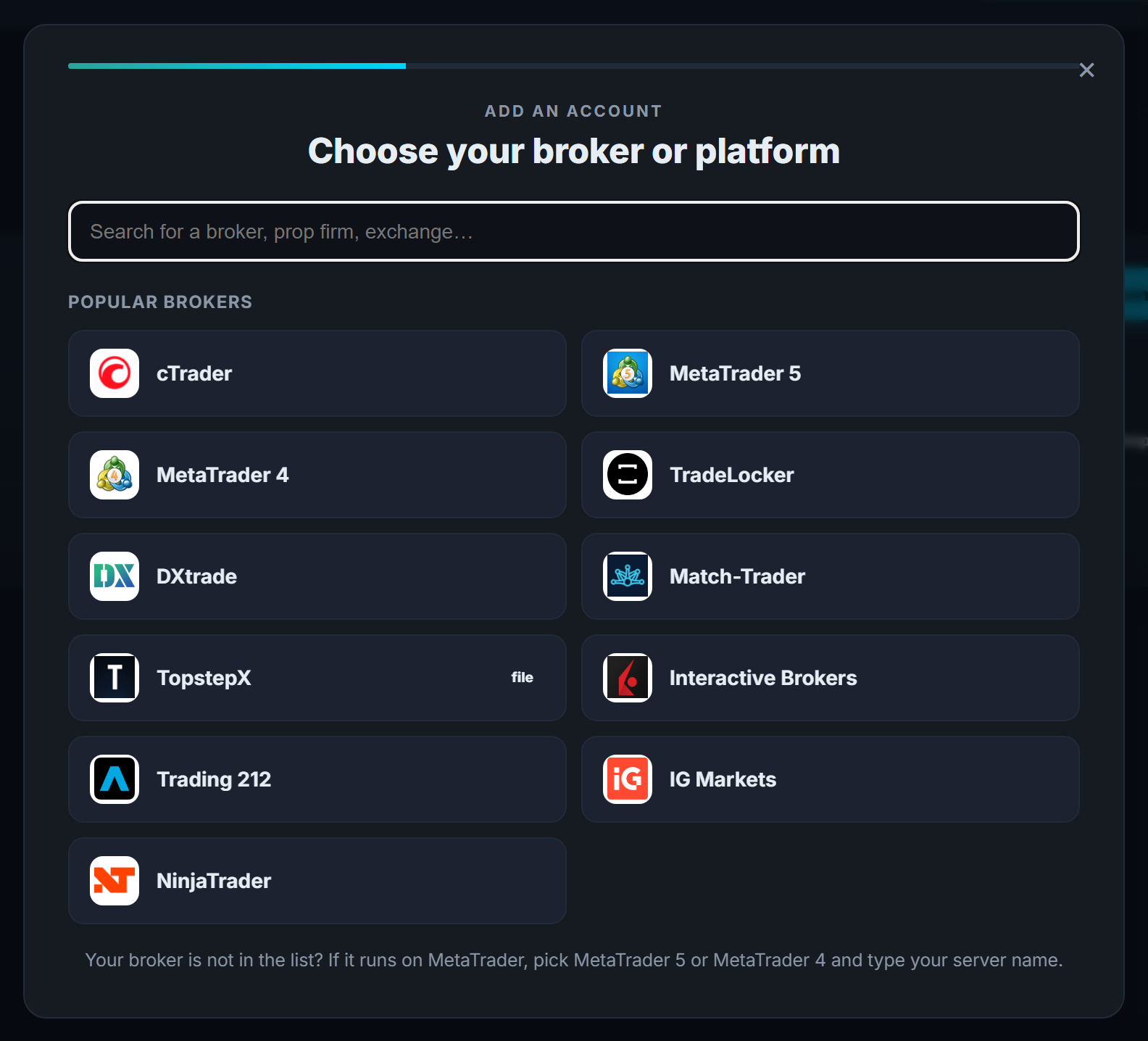
The app's Add an account screen: choose your broker or platform from cTrader, MetaTrader 5 and 4, TradeLocker, DXtrade, Match-Trader and more.

Sync messages, now in your language

When your broker refuses a MetaTrader connection or a sync fails, the message now follows the app's language: English, Spanish or Portuguese. You see right away what's blocking and can act on it.

Where you'll see it
In the accounts table, the connection wizard and the Live session. The plan names on the Subscription screen are translated too.

It's live in the web app first and comes to Android with the next version. Nothing to set up: just use the app in your language.

Open the topic and reply →
A reminder before every renewal. Crypto, card or Pix: never caught out.

A reminder before every renewal, whatever your payment method

Whether you pay for Tradoshi with crypto, by card or with Pix, you now get a reminder before each due date of your subscription. No need to keep an eye on the date yourself.

Paying with crypto
Your subscription is paid in advance: you get an email a few days before it ends, then the day before and on the day itself. Each email includes a direct link to the Subscription screen so you can get there in one click.

Card or Pix
You get a reminder before your renewal: one week ahead for the annual plan, a few days ahead for the monthly plan. That gives you time to check your subscription before it renews.

Open the topic and reply →
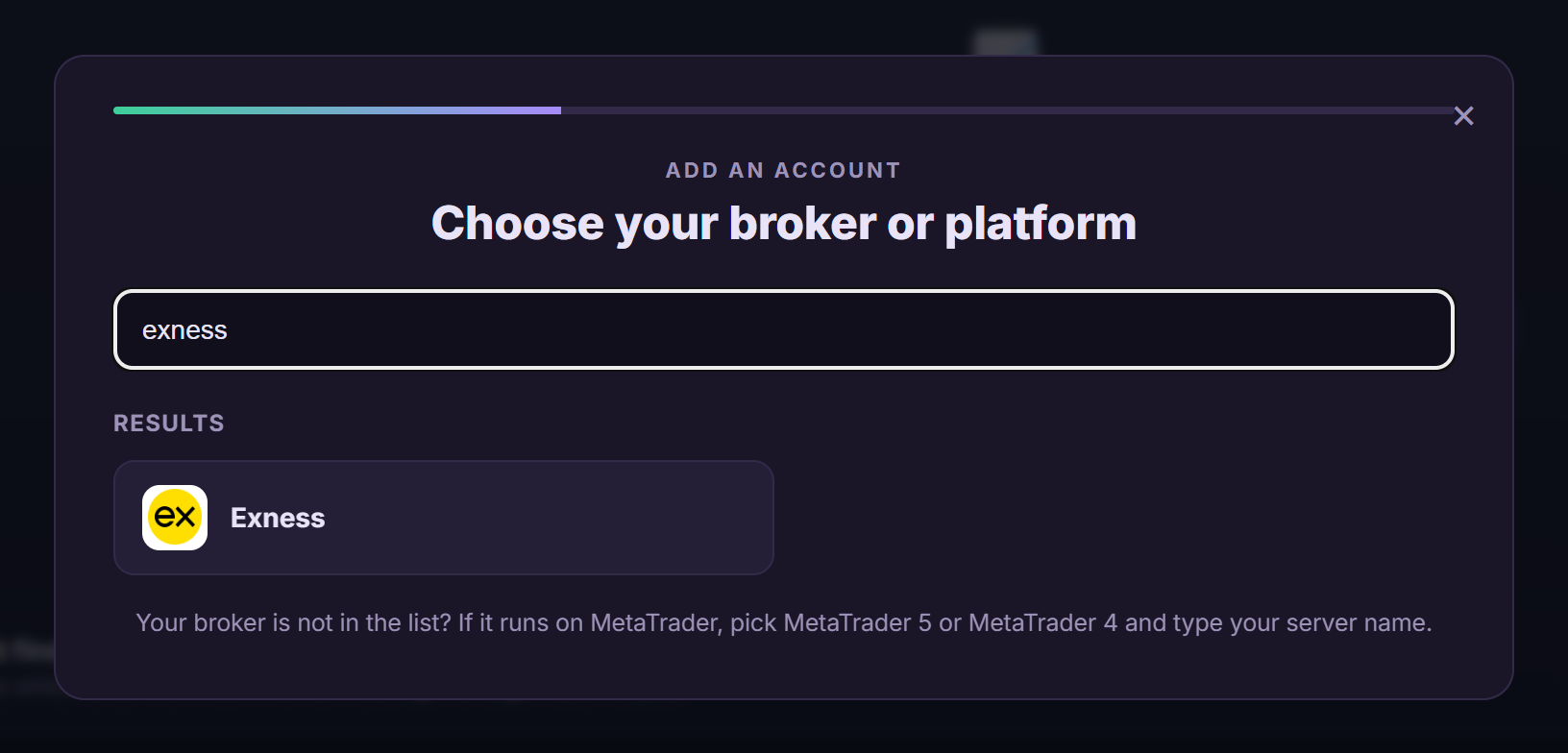
Connecting an Exness MetaTrader account in the Tradoshi app.

MetaTrader sync: a failed account is retried on its own

When the overnight sync of your MetaTrader account doesn't go through, you no longer have to wait for the next night: a catch-up run relaunches it during the morning.

Newly connected accounts

Just connected an account and its first sync failed? It's relaunched automatically during the day, with nothing to do on your side.

Your trades keep landing in your journal, so you can focus on your review instead of watching the connection.

Open the topic and reply →
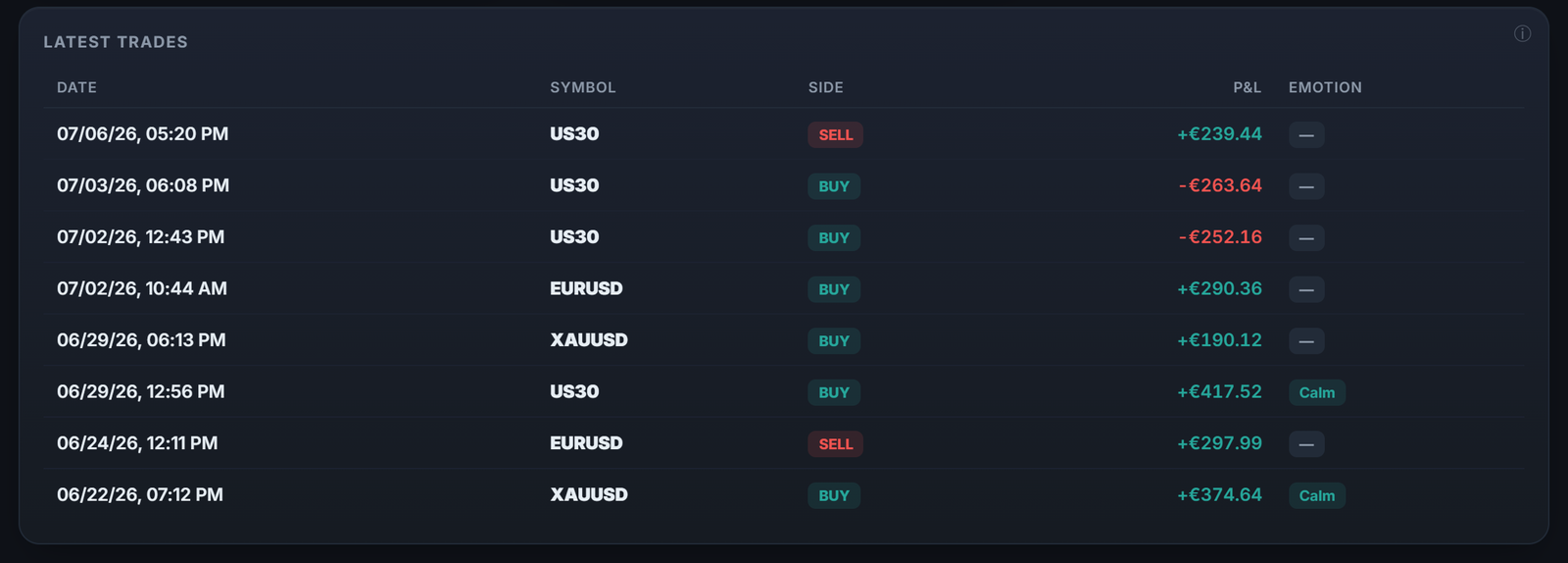
Your latest trades in Tradoshi, imported with their P&L: the table you used to fill in by hand in Excel.

The Tradoshi Excel template now imports straight into the app

Keeping your journal in the free Tradoshi Excel template? It now goes straight into your journal in the app, in a single file: trades, risk, emotions and notes.

How it works
The workbook comes in French, English, Spanish and Portuguese, and every version imports the same way. No columns to rearrange, no copy and paste: you import the file and your history shows up in the Journal.

It works the other way too: the Journal exports your trades in the same format. So you can go back to your spreadsheet whenever you like, without losing anything along the way.

Learn more: tradoshi.com/en/blog/trade-journal-excel-template

Open the topic and reply →
Your account balance straight from MT5. Broker fees and bonuses in Treasury.

MetaTrader 5: the balance you see is your terminal's

On your MetaTrader 5 accounts, the balance shown in Tradoshi now comes straight from the MetaTrader terminal. What you see in the app matches what you see on your platform.

Prop firm accounts and broker operations

If you trade a prop firm account, the starting capital is found even when there is no deposit. Your broker's fees, bonuses and corrections show up in Treasury, on an "Other broker operations" line, so you know where every difference comes from.

There is nothing for you to do: each account updates at its next sync.

Open the topic and reply →
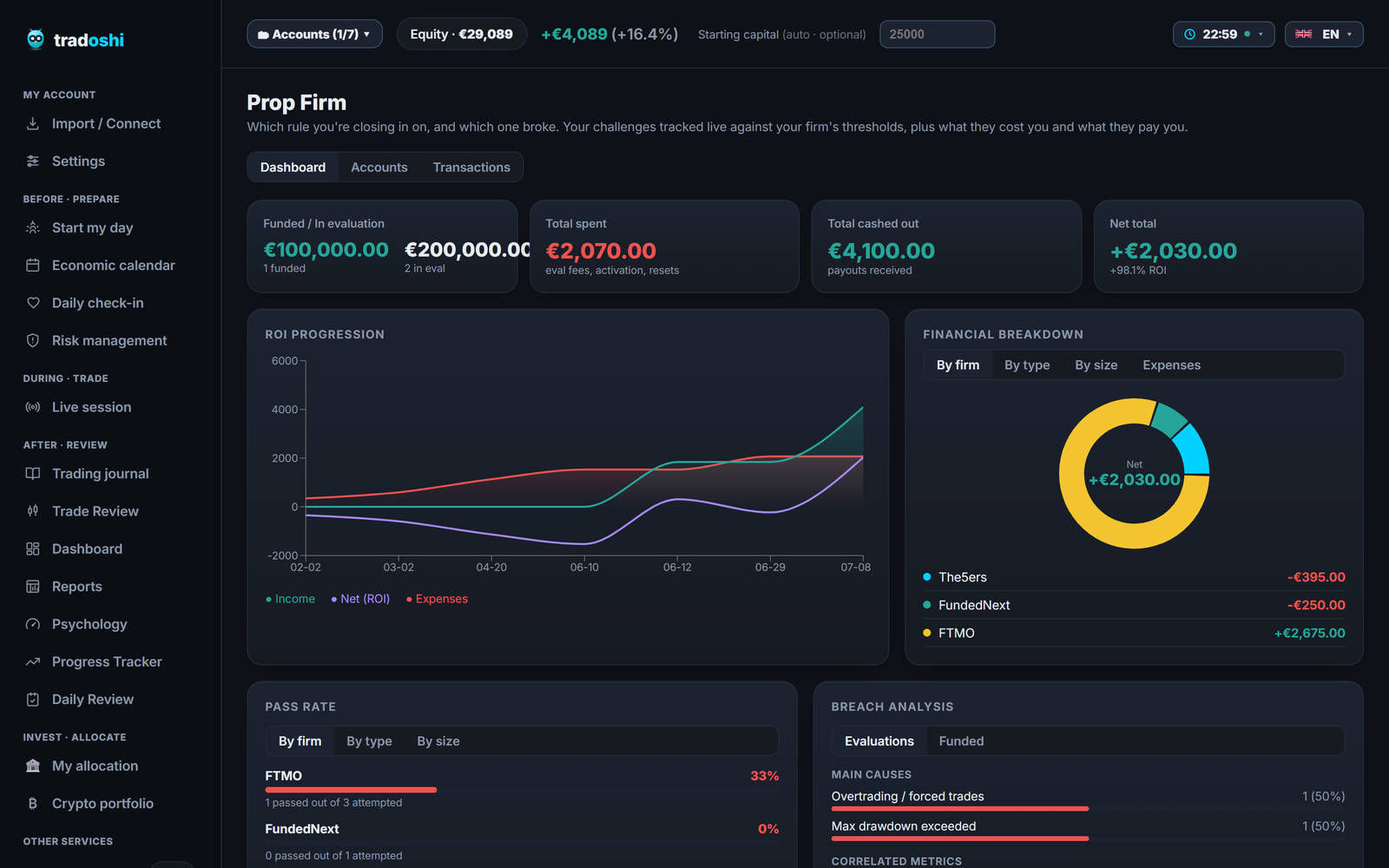
Prop firm risk and rule tracking in Tradoshi.

Futures prop firms: your trading day follows the CME session

If you're running a challenge or a funded account with Apex, Take Profit Trader, TradeDay, BluSky, Tradeify or Bulenox, your trading day in Tradoshi now starts at the opening of the CME session, just like at the firm.

What follows this session
Daily loss, days traded, the countdown to the new day, What-If scenarios and Oshi all follow this session. The numbers you see in Tradoshi now match the ones your firm counts.

With FTMO, the day follows Prague time. There's nothing to set up: open your Prop Firm space and track your limits on your firm's clock.

Open the topic and reply →
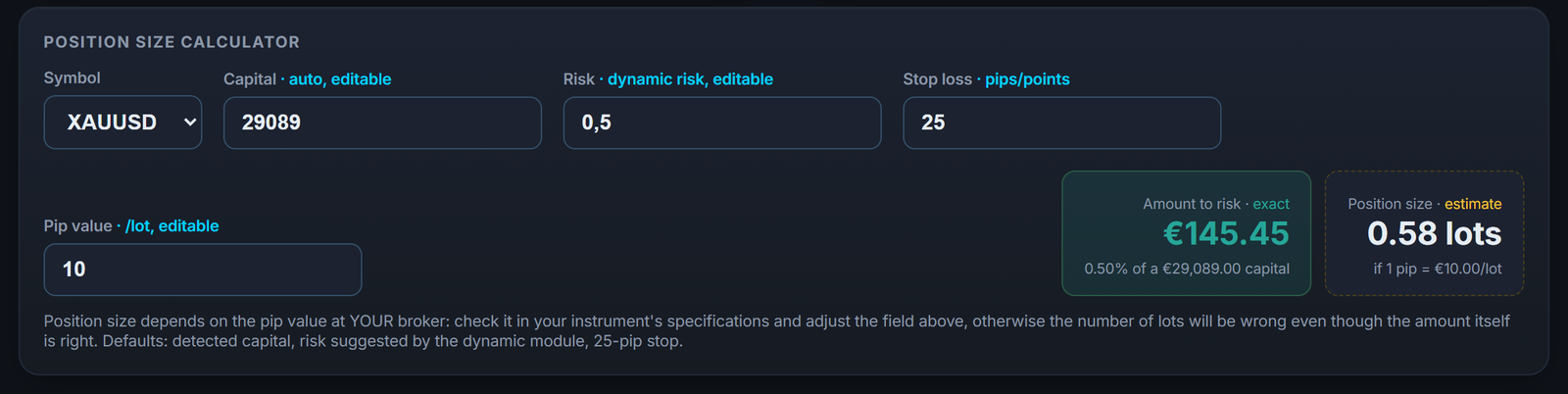
The Tradoshi position sizer: your capital, your risk and your stop in pips give the amount to risk and the size in lots.

Risk management: one position sizer per account

If you track several accounts at once, Risk management now handles each one on its own. With several accounts checked, the position sizer uses the capital of the account you pick, and the Today view judges each account's daily loss against its own capital.

More reliable sizes

Lots are rounded down, so you never risk more than planned. And if the risk you ask for can't be reached, the calculator tells you.

The right pips and stablecoin accounts

Silver (XAGUSD) and yen pairs with a broker suffix now use their real pip. Accounts in USDT or USDC display normally. Open Risk management, choose your account and size your next position.

Open the topic and reply →
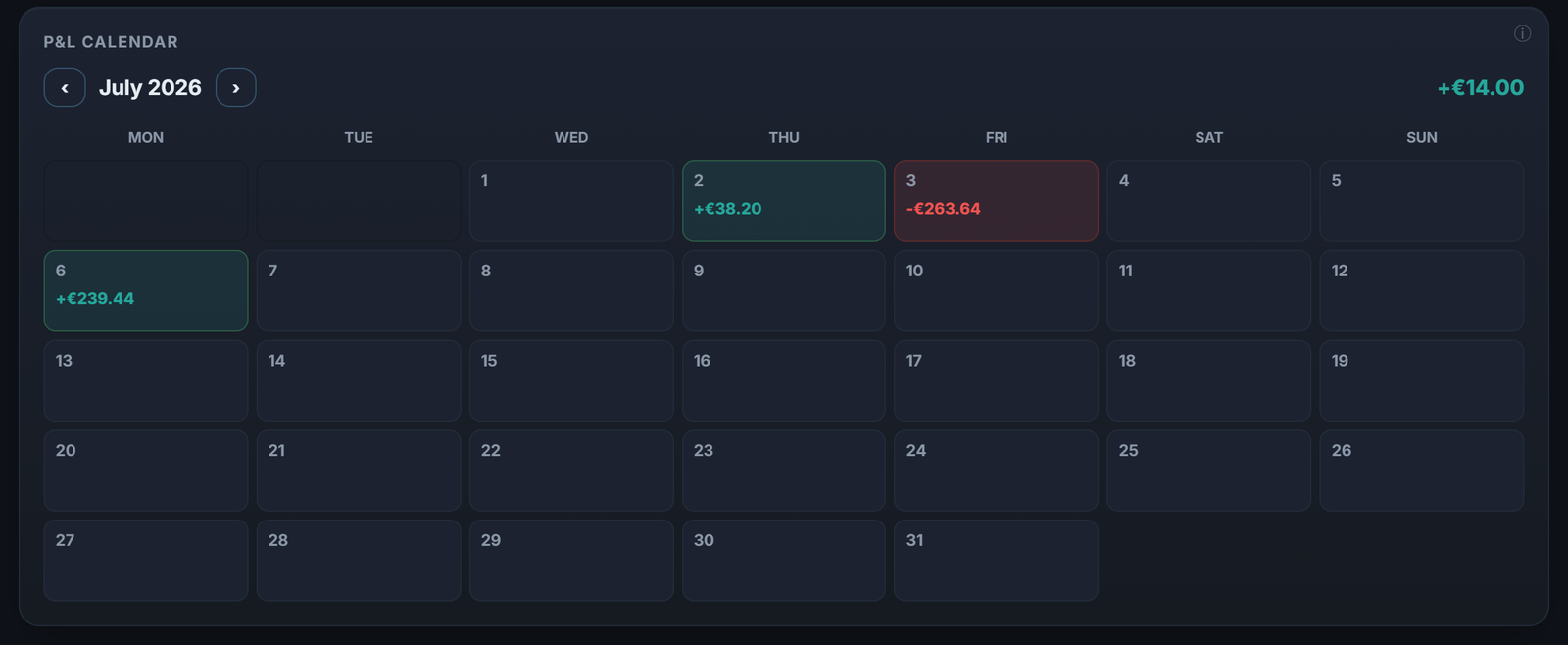
The dashboard P&L calendar: your first month, day by day.

Dashboard and Reports: calculations revised

We revised several calculations in the Dashboard and in Reports so your numbers match exactly what happened on your accounts.

What changes for you
The P&L calendar now moves month by month. Best day and worst day show the real extremes of your history. In Reports, each account is shown with its own capital, so your percentages no longer blend from one account to another.

Exit efficiency now compares the gross result to the MFE, so you can see how much of what the market offered you actually captured.

Finally, the calendar, the Progress tracker and the averages follow the display mode you pick (Confidential, %, R). Switch modes and everything adjusts at once.

Open the topic and reply →
Android 1.3.0 Trading news alerts. One per day at most, never at night.

Android 1.3.0: trading news as notifications

Version 1.3.0 of the Android app brings trading news. A card shows you the latest news in your language, and you can get a notification when an article is published: one per day at most, never at night. If you'd rather not, you can turn it off in Settings.

Also in this version

What-If scenarios: set some trades aside and compare your results before and after. The dashboard can now be shown in R, meaning multiples of the risk you took.

In backtest replay, you now have 3x and 5x speeds, and you can skip straight to the next session. And if you find a bug or have an idea, you can send it from the menu.

Open the topic and reply →
Trading news now in the app. The latest news in your language.

Trading news now in the app

When you open the app, a card now shows you the latest news in your language, with a link to the article. You stay up to date without changing your routine.

Notifications, only if you want them

If you like, your browser can notify you when a new article comes out: one per day at most, and never at night.

You can turn them off anytime in Settings > Notifications.

Learn more: tradoshi.com/en/news

Open the topic and reply →
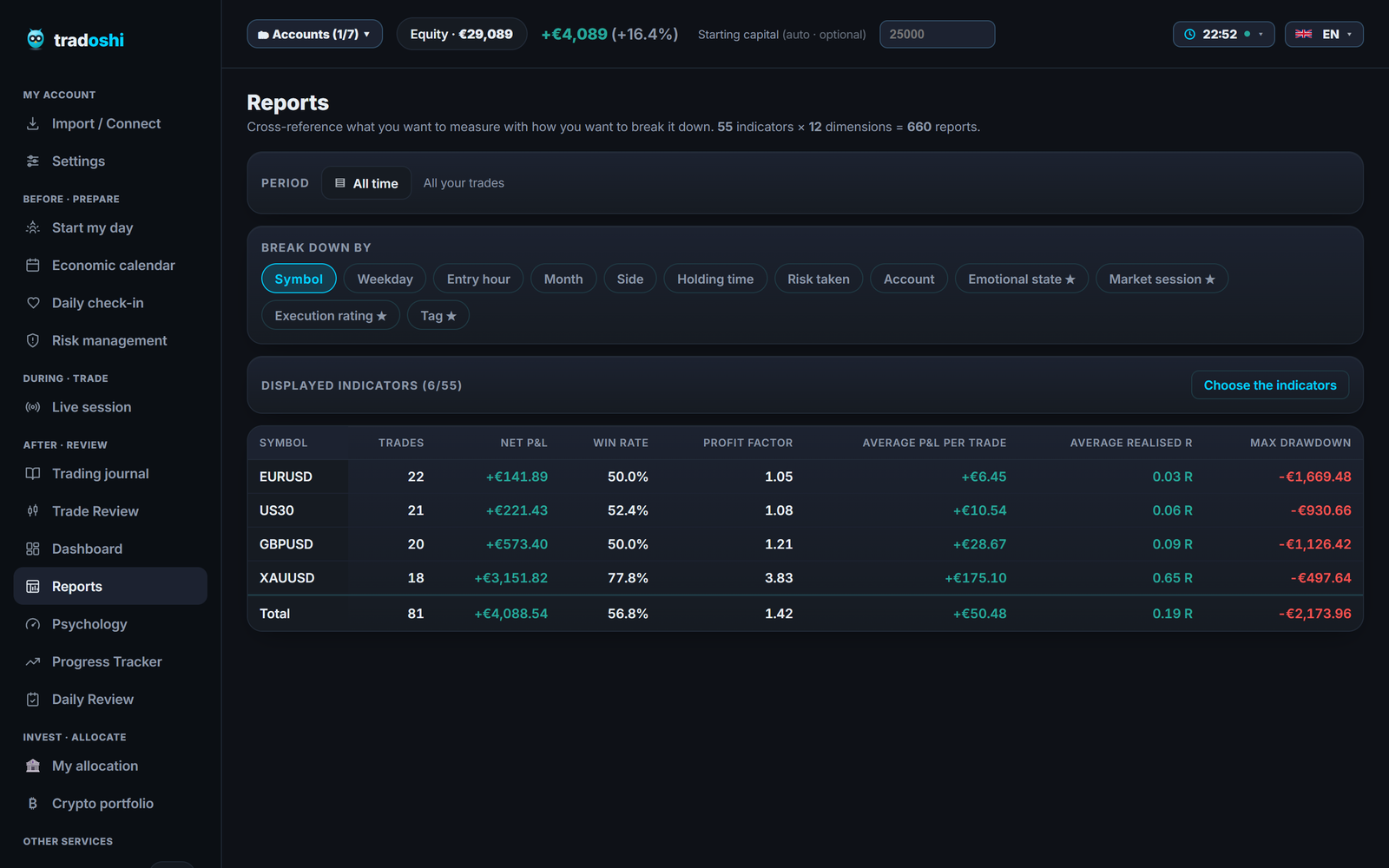
The performance reports in Tradoshi.

What-If scenarios in Reports and Prop Firm

What if you had skipped certain trades? With What-If scenarios, you can ask your own data that question, right in Reports and in the Prop Firm cards.

How it works
Set trades aside based on the conditions you choose, then compare before and after. You see right away what changes in your results when those trades are left out.

In the Prop Firm cards, the scenario also shows you the challenge verdict, so you know what would have happened to your challenge without those trades.

Open Reports or your Prop Firm card, set your conditions and see what your repeated mistakes cost you.

Open the topic and reply →
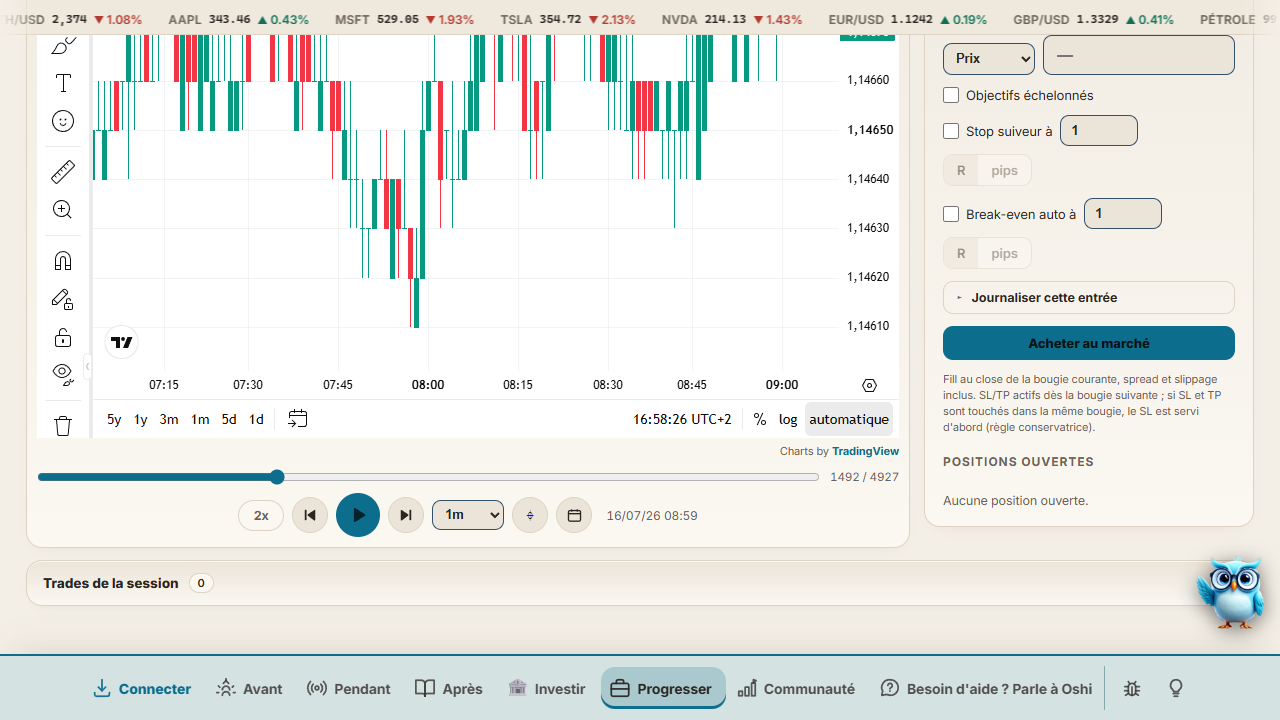
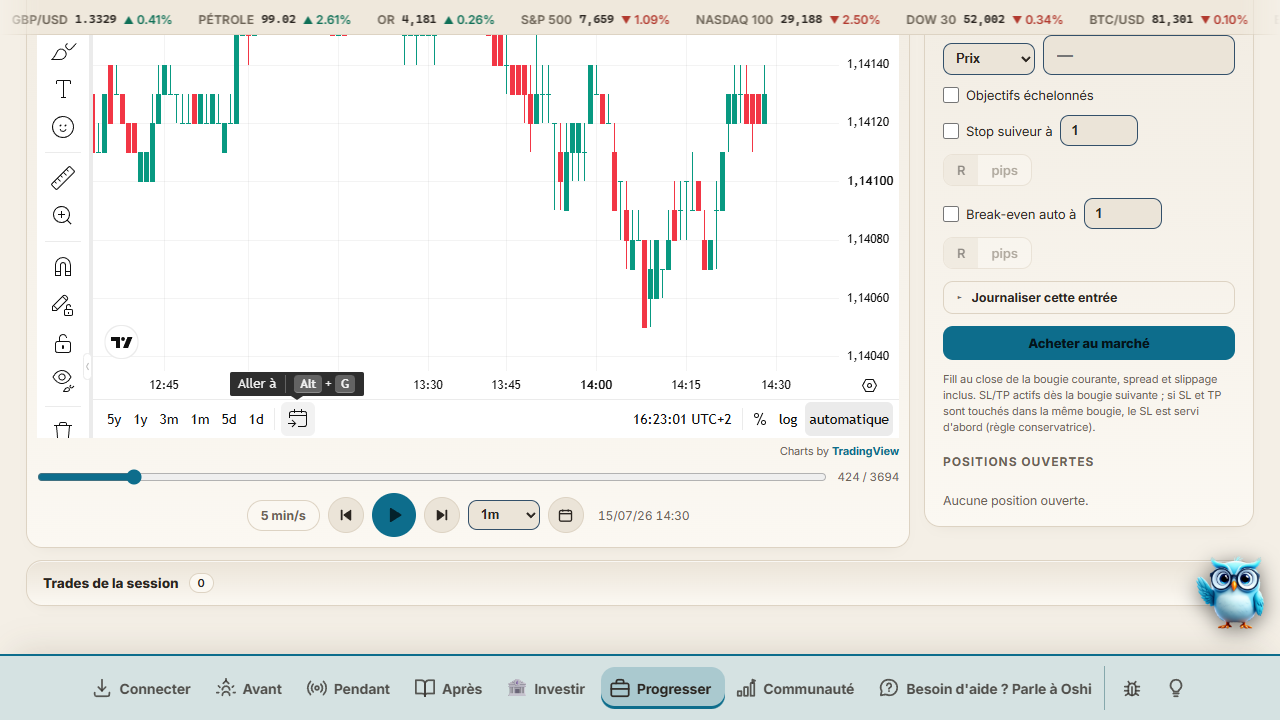
The EURUSD replay paused just before the London open, at 8:59 Paris time.

Backtest replay now works in one click

Jump to the open you want
The « Next open » button takes you to just before the Asia, London or New York open, in each market's local time. No more stepping candle by candle to reach the moment you want to practise.

Everything happens on the chart
Click to the right of the last candle and the replay moves forward to that point. One click also places your stop or your target at the price you want.

Go back to every entry
Each trade in the session has a button that takes you back to just before its entry. You see what you had in front of you and can replay the decision calmly.

Learn more: tradoshi.com/en/backtesting

Open the topic and reply →
Backtesting: drive the replay in one click. Jump to Asia, London, New York opens.

Backtesting: drive the replay in one click

The backtesting replay is now quicker to handle. You no longer need to step candle by candle to reach the moment you care about.

What changes
You can jump straight to the next Asia, London or New York open. You can also click a point on the chart to move forward to it, place your stop and target in one click, and go back to just before a trade's entry to replay it.

Open backtesting, start a replay and try these shortcuts in your next practice session: less waiting, more time working on your entries.

Open the topic and reply →
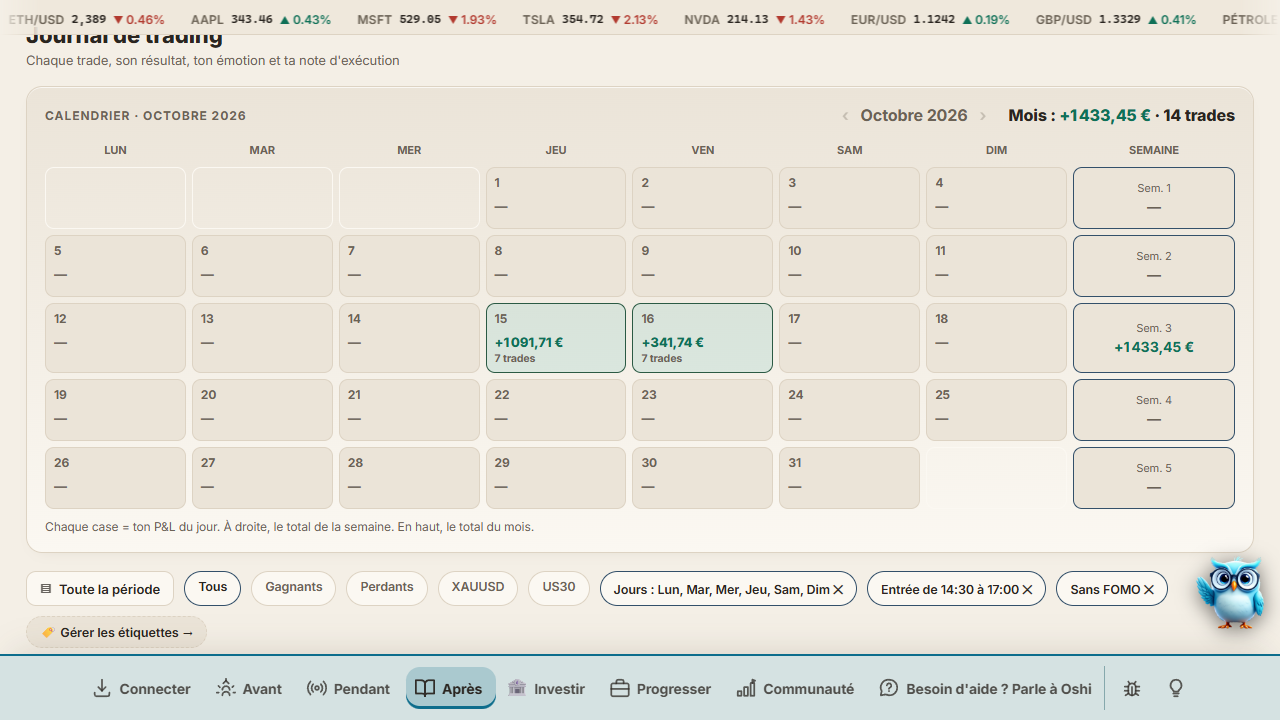
The Journal filtered by Oshi: every day except Friday, entries from 2:30 pm to 5 pm, without the FOMO trades.

Oshi filters your journal by day, time and exclusion

No more setting filters by hand. Ask Oshi for something like « my gold trades, not on Fridays, between 2:30 pm and 5 pm » and it applies the filters in the Journal or the Dashboard, in your own time zone.

Visible filters, removed in one click

Each filter shows up as a chip above your trades. One click removes it, so you can refine your analysis without starting over.

Oshi also explains how every figure in the app is calculated. Not sure about a metric? Ask it, and you'll know exactly what you're looking at.

Learn more: tradoshi.com/en/trading-journal

Open the topic and reply →
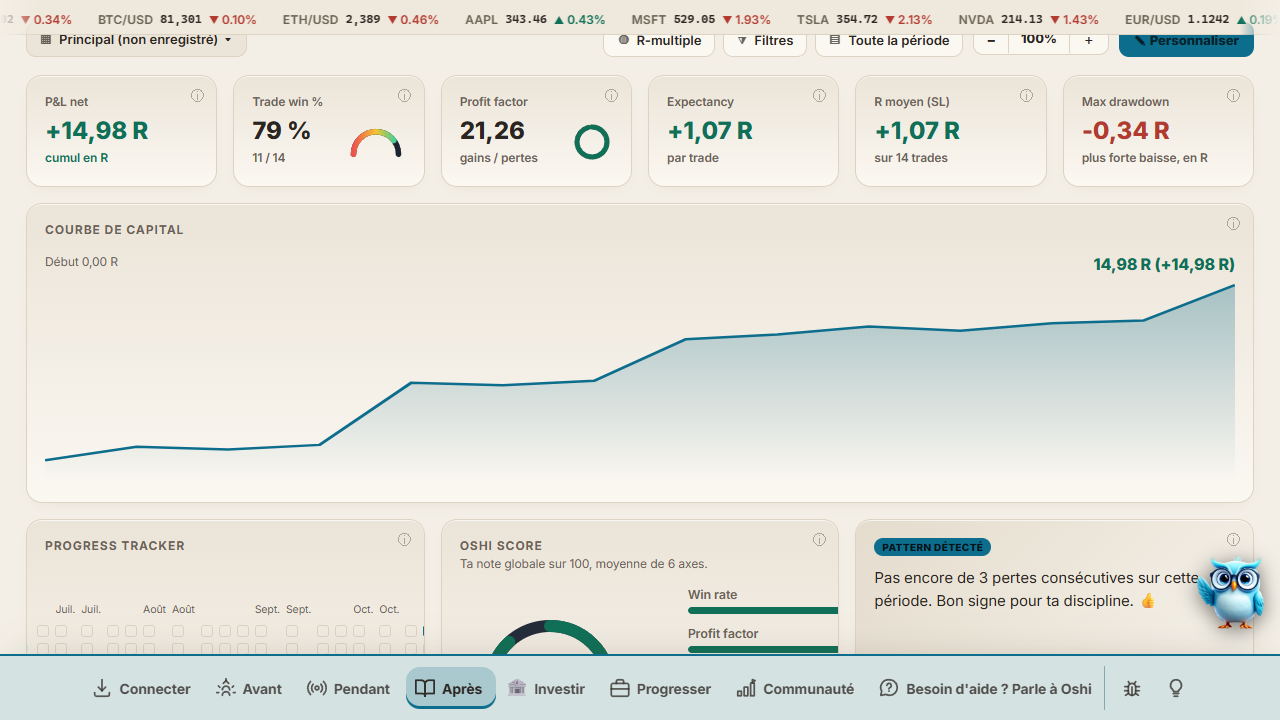
The sample data Dashboard shown in R: net P&L, expectancy, drawdown and equity curve.

Your Dashboard, now in R

Your Dashboard has a new R-multiple display toggle. Switch it on and every trade counts in multiples of the risk you took to your stop, with all figures and charts following along. You compare your trades by what you risked, not by position size.

Trades without a stop
Trades without a stop are left out of the calculation and flagged. They are never counted as zero, so your R figures stay accurate. It's a good chance to spot them and add the missing stop.

From the year to the Journal in one click
In the annual performance view, click a month and it opens straight in the Journal. You go from the big picture to that month's trades without searching.

Learn more: tradoshi.com/en/trading-journal

Open the topic and reply →
The replay of a 1 minute EURUSD session, played at 5 market minutes per second.

Backtesting replay now runs on market time

The backtesting replay gets two more speeds: 3x and 5x. You can move faster through quiet stretches and slow down where price gets interesting.

Playback in market minutes
You can now also play the market in market minutes per second: 1, 5, 10 or 30, whatever timeframe is on your chart. A 1 minute chart and a 15 minute chart move at the same real pace, and you choose how much market goes by each second.

Your time, your sessions
The chart axis now follows your time zone, and the London and New York sessions follow their own clock changes. Your opens land where you expect them, all year round.

Learn more: tradoshi.com/en/backtesting

Open the topic and reply →
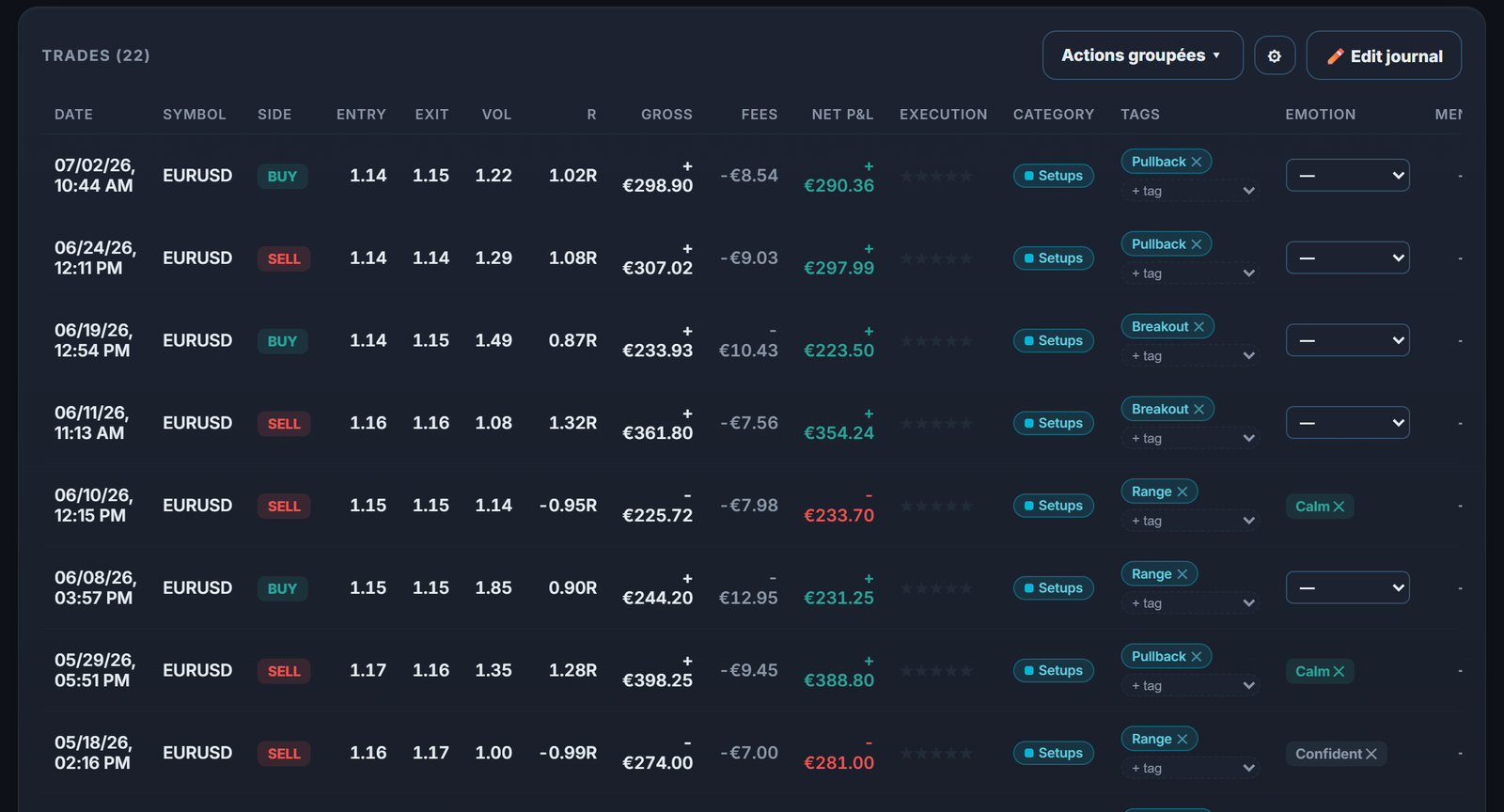
The Tradoshi journal filtered on EURUSD: each forex trade with its risk, its R and its P&L.

Journal and dashboard: filter by day, entry time and exclusions

You can now narrow down what you see in the Journal and the Dashboard with new filters. Pick the days you want to analyze, set an entry time range, and exclude a symbol, a tag or an emotion.

Your time, not the server's
The entry time range follows the time zone set in your profile. Your morning trades really are your morning trades.

By hand or with Oshi
Set the filters yourself or ask Oshi to do it. Either way, they show up as chips, so you always know exactly what you're looking at.

Open the topic and reply →
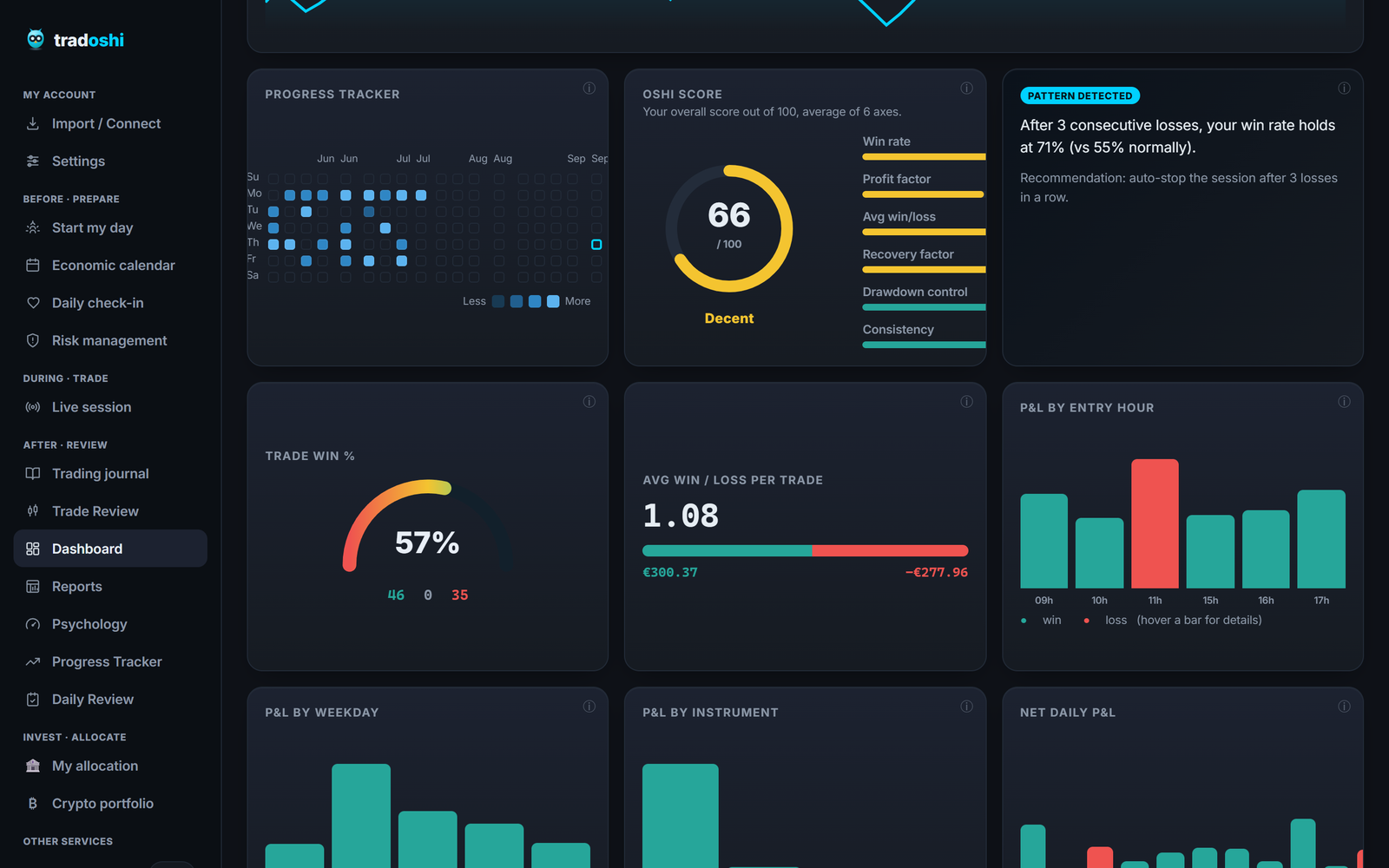
The Tradoshi Oshi Score: a 6-axis radar calculated from your trades.

Oshi Score and discipline: three calculations fixed

We fixed three calculations so your scores better reflect what you actually do in the market.

Daily loss limit turned off
If you turned off the daily loss limit, it no longer counts toward your discipline score. You're judged only on the rules you actually use.

Progress tracker
The progress tracker is now based on your own trading rules, the ones you set up.

Oshi Score with no losses
When you have no losing trades, the profit factor and gain/loss axes of the Oshi Score now show at their maximum. Nothing to do on your side: the calculations apply directly to your account.

Open the topic and reply →
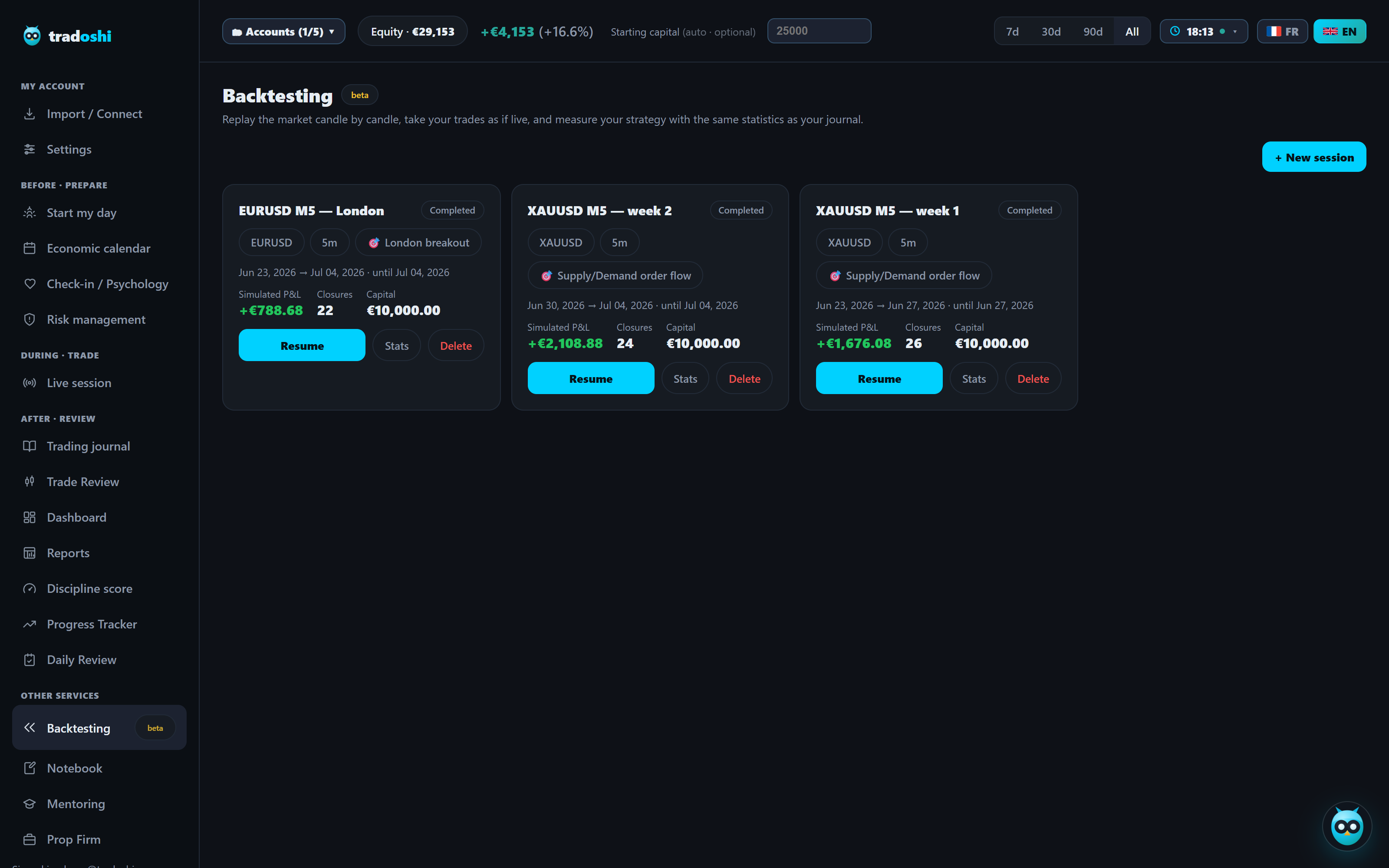
The Tradoshi backtesting screen, with its trading simulator.

Backtesting replay: 3x and 5x speeds and market time

Backtesting replay just got finer. You now pick your speed from 1x to 16x, with two new steps, 3x and 5x, so you can move faster without losing track of the candles.

Read the market in market time
You can also play the chart in market time: 1, 5, 10 or 30 minutes of market per second. That way you decide how much real time passes in each second of replay, whatever timeframe you are looking at.

Accurate hours
The chart axis now shows your profile's time zone, and the London and New York sessions follow daylight saving time. Your session opens land where they should, all year round.

Open backtesting, start a replay and try the new speeds.

Open the topic and reply →
Tradoshi, the trading journal

Connect your accounts, measure what you actually do, and keep a record.

Discover Tradoshi
Also worth reading The blog · Pricing · The academy
Trading involves a risk of loss, up to the entire capital committed. Tradoshi is a journaling and analytics tool: we provide no financial advice and guarantee no result. Futures and forex trading contains substantial risk and is not for every investor: an investor could potentially lose all or more than the initial investment, and only risk capital should be used for trading. Hypothetical performance results have many inherent limitations: they are generally prepared with the benefit of hindsight, involve no financial risk, and no representation is being made that any account will or is likely to achieve similar results. Past performance is not necessarily indicative of future results. Full risk disclosure.