Obsidian plugin

Your trading journal in Obsidian

A complete trading journal in Obsidian: dashboard, trade cards, trade log, reviews, setups and prop firm challenges. Your trades come in on their own from your broker, from a file or by hand, and the notes you write stay with you.

Or search for “Tradoshi” in Obsidian's community plugins.

Free plugin · Public source code, MIT license · In English, French, Spanish and Portuguese

The dashboard

What you see in Obsidian

The plugin opens your dashboard in an Obsidian tab. It is computed on your computer, from the notes in your vault, so it shows even offline.

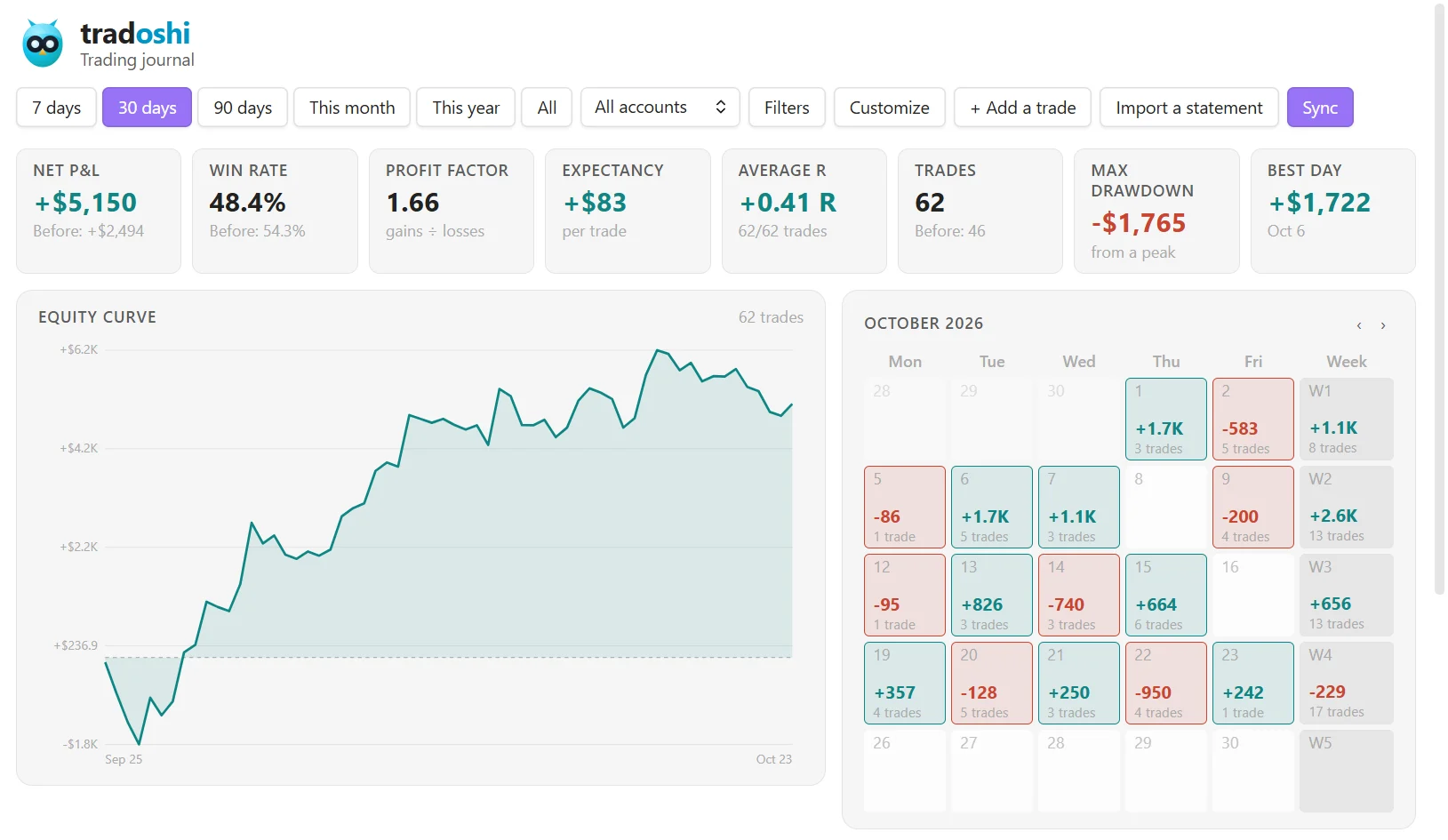
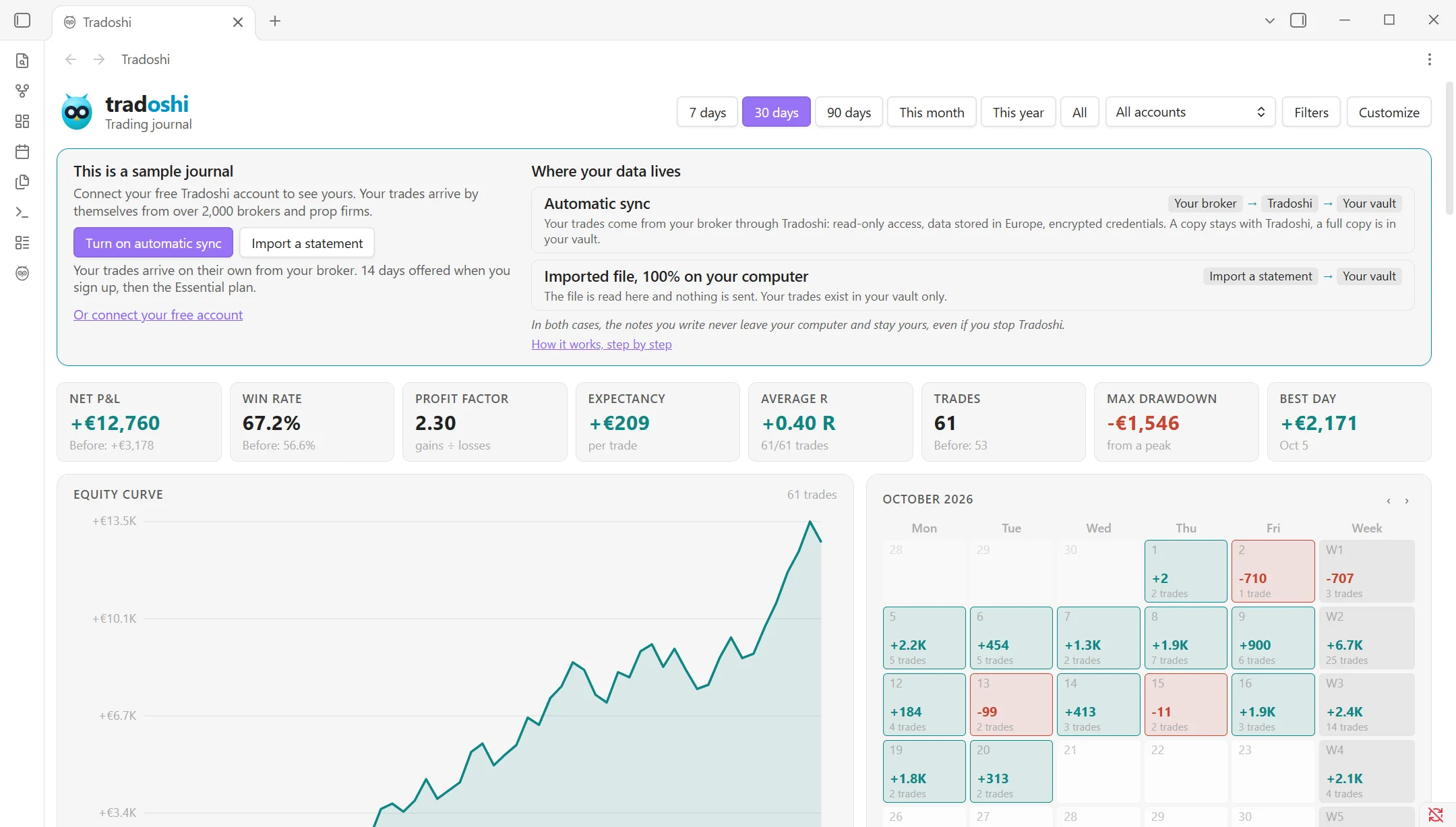
The Tradoshi dashboard in Obsidian, filled with the sample journal: key figures, equity curve and monthly calendar
On first launch, the dashboard shows a sample journal.

Key figures

Net P&L, win rate, profit factor, expectancy, average R, number of trades, max drawdown and best day.

Equity curve

Your capital, trade after trade.

Monthly calendar

Each day's result. Click a day to open its note.

Discipline

Your results when you followed your plan and when you did not, and your trades marked with a mistake.

Setups, emotions and days

Your results by setup, by emotion when entering and by day of the week.

Latest trades

Symbol, side, R and result at a glance.

And around the dashboard, your journal lives as Markdown notes: one per trade, one per trading day, and an overview.

The whole journal

Everything the plugin does

Beyond the dashboard, everything a trading journal should do, in your notes and on your computer.

A card for each trade

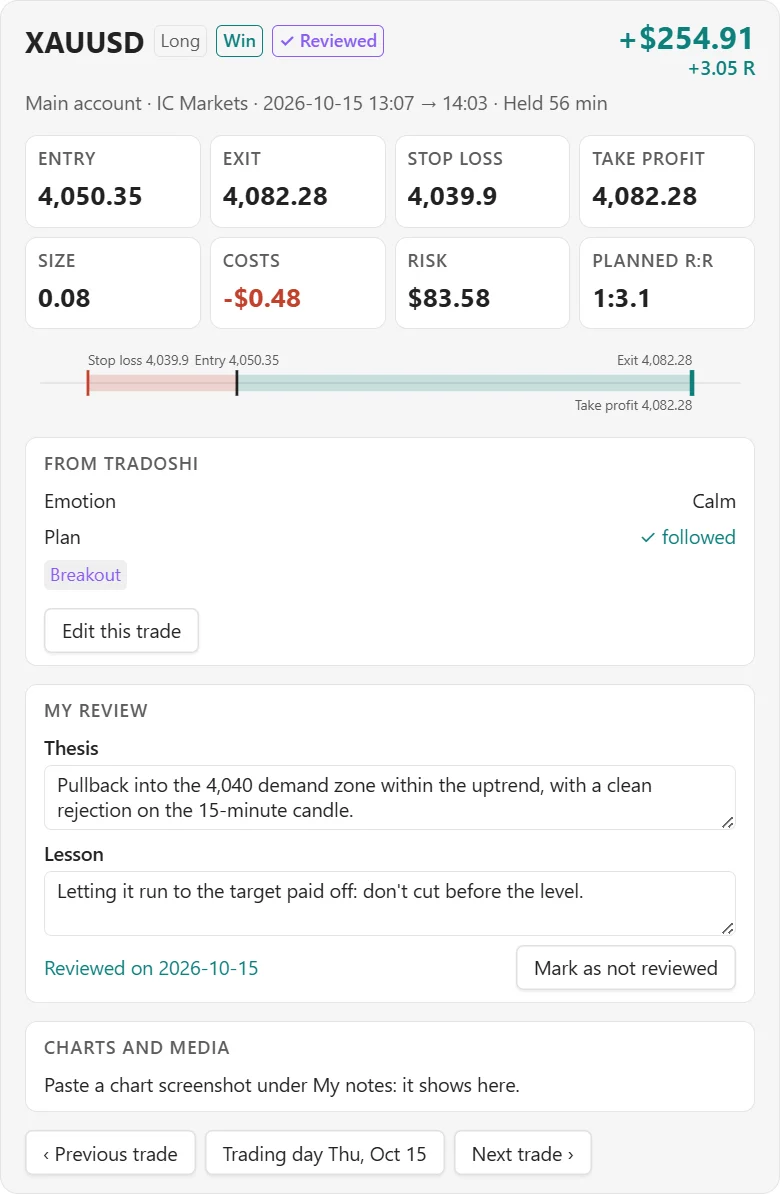
At the top of each trade note: prices on one scale (stop, entry, exit, target), risk, planned reward to risk, holding time and your review (thesis, lesson, reviewed). Your screenshots open full size and each one can be annotated.

The trade log

All your trades in a table: columns of your choice, sorting, grouping by day, week, month or year with subtotals, filters, and actions on several trades at once. A gallery gathers all your charts.

The day report and your reviews

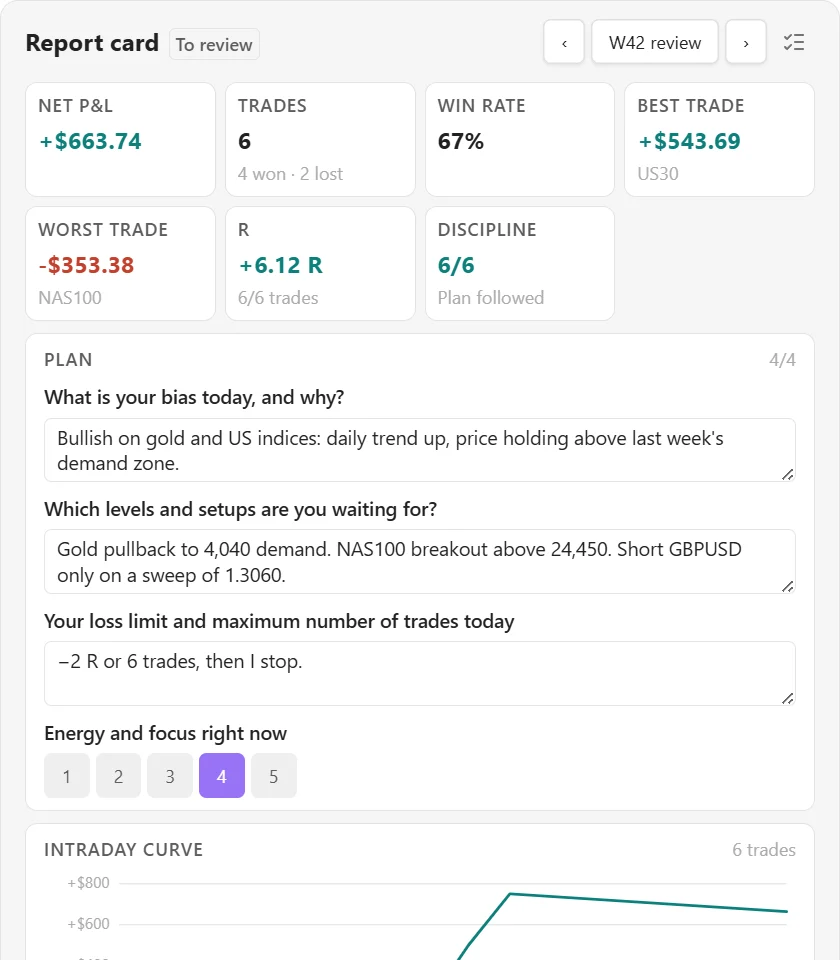
Each day note has its report: figures, the day's curve, a quick review of each trade, questions before and after the session from the Essential plan. Weekly, monthly, quarterly and yearly reviews, compared with the period before.

Session mode

With the Premium plan. Prepare your session with your checklist, log what happens as it happens, and run each trade idea through your trade gate: a series of questions that leads to GO, WAIT or NO GO.

Your setups and their playbooks

A sheet per setup with its rules and playbook, its figures, its curve, and what the trades where you broke your plan cost you. Compare your setups side by side.

Prop firm challenges

With the Pro plan. Profit target, static or trailing maximum loss, daily loss, minimum days and consistency: each rule as a gauge, phase by phase, up to the funded account and its payouts.

Your accounts and your goals

Each account's balance, curve, return and drawdown in %. From the Essential plan, goals of your own: result, number of trades, win rate, average R or trades reviewed, each day, week or month.

A dashboard of your own

Dozens of widgets you show, hide and order: Sharpe, Calmar, drawdown, streaks, best hours, long against short, year heatmap, trading score, comparison with the period before.

Entry, import and privacy

Add a trade by hand, missed trades included (backtest trades with the Pro plan), or import a MetaTrader report, a CSV or an Excel file. Privacy mode blurs every amount for a screenshot.

Your data

Where your data lives

Your trades reach your vault by two paths. Here they are side by side, with what goes through Tradoshi and what stays with you.

Automatic sync

  • Your broker
  • Tradoshi
  • Your vault
Where your trades come from
Your account with your broker or prop firm. Over 2,000 brokers and prop firms are supported.
What goes through Tradoshi
Your trades, with read-only access. They are stored in Europe, your broker credentials are encrypted, and a copy stays with Tradoshi.
What is in your vault
A full copy of your trades, and your notes.
Price
Included in the paid plans, with a 14-day trial.

Imported file

  • Your file
  • Your vault
Where your trades come from
A MetaTrader 4 or 5 report (.html), a CSV or an Excel file (.xlsx). Columns are recognised in English, French, Spanish and Portuguese, and you can correct them.
What goes through Tradoshi
Nothing. The file is read on your computer, and nothing is sent.
What is in your vault
100% of your trades, and your notes.
Price
Free.

Either way, the notes you write never leave your computer, and they stay yours even if you stop using Tradoshi. Without an account, you import a statement of up to 20 trades; beyond that, a free Tradoshi account is required.

The plugin's code is public, under the MIT license: anyone can read what it does. To see where Tradoshi hosts your data and how it protects your access, read the Data security page.

Step by step

From install to your first journal

Each step as it appears on screen, before and after.

  1. Install the plugin and explore the sample

    Install “Tradoshi Trading Journal” from Obsidian's community plugins, then enable it. On first launch, the dashboard fills up with a sample journal: you see what yours will look like before connecting anything.

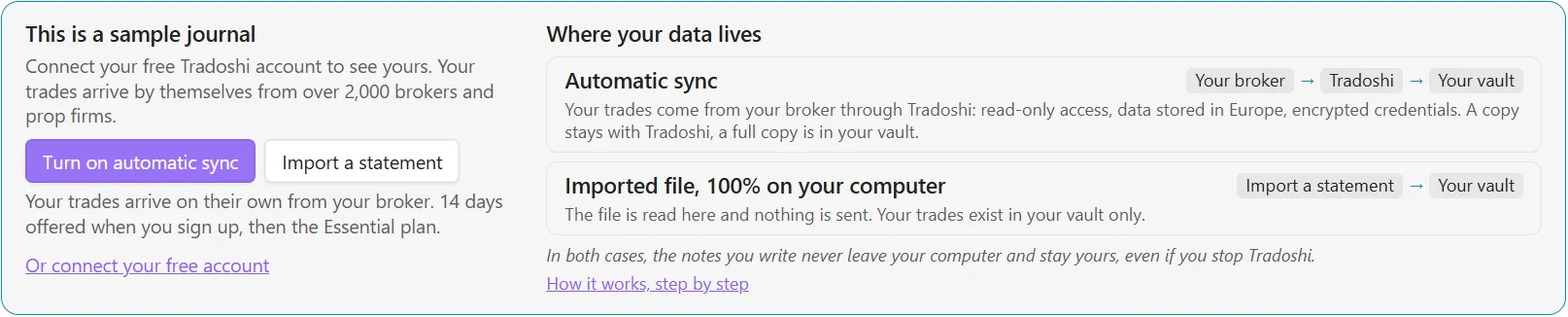
    At the top, two buttons: “Turn on automatic sync” and “Import a statement”, with a link below to connect your free account.

    The sample journal banner in Obsidian, with the buttons to turn on automatic sync and to import a statement, and the two paths of your data
    The sample journal banner.
  2. Create your free account and connect Obsidian

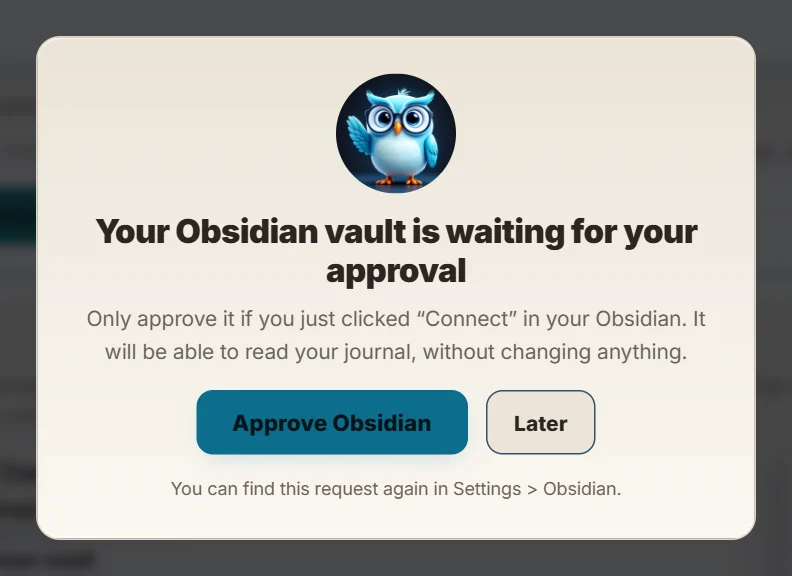
    Click “Turn on automatic sync” (or “Connect my free account”). The Tradoshi app opens in your browser: create your account with your email address, or sign in. As soon as you are signed in, a window asks you to approve your vault: click “Approve Obsidian”. Closed it? The request waits for you in Settings, Obsidian section.

    In the Tradoshi app, the card Your Obsidian vault is waiting for your approval, with the Approve Obsidian button
    In the Tradoshi app: one click to approve your vault.

    Go back to Obsidian: your vault connected on its own, and your journal comes in.

    The connection token can only read your journal. It is kept in Obsidian's secret storage, and you can revoke it at any time from the app.

  3. Connect your broker, and your journal stays up to date

    For automatic sync, connect your trading account in the Tradoshi app, your broker or prop firm, read-only: it is step 3 of the Obsidian section. Your trades then come into your vault on their own: every night, without opening the app, for MetaTrader 4 and 5 accounts and for platforms connected by API (cTrader, TradeLocker, Match-Trader, Interactive Brokers, IG, Tradovate and crypto exchanges), and each time you open the app for the others. Until an account is connected, your journal stays empty, and the plugin offers to connect your broker or import a statement.

    The plugin syncs when you open your vault and every hour, an interval you can change. The “Sync” button runs a sync whenever you want. The time zone and the hour your trading day starts can be set too.

    The Tradoshi dashboard in Obsidian after the sync: net P&L, win rate, equity curve and calendar
    The dashboard after the sync.
  4. Or import a statement

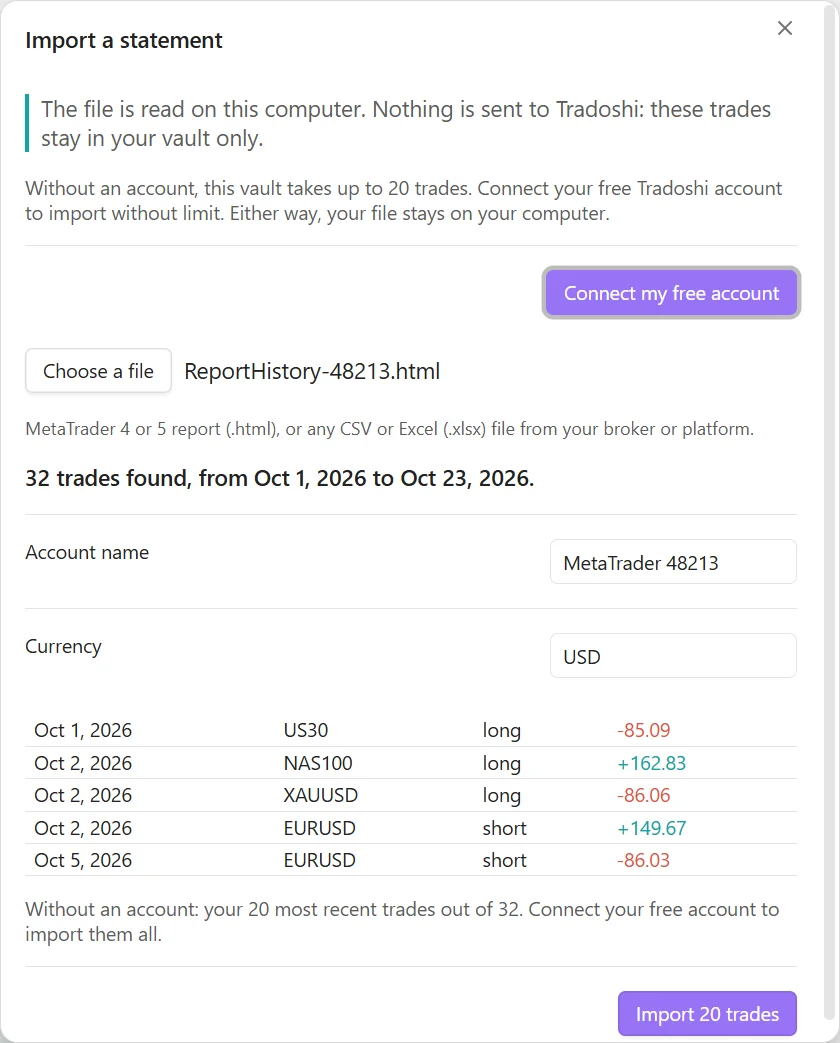
    Click “Import a statement” and pick a MetaTrader 4 or 5 report (.html), a CSV or an Excel file (.xlsx) from your broker or platform. Before importing, you see the trades found, the account name and the currency.

    The file is read on your computer. Nothing is sent to Tradoshi: these trades exist only in your vault.

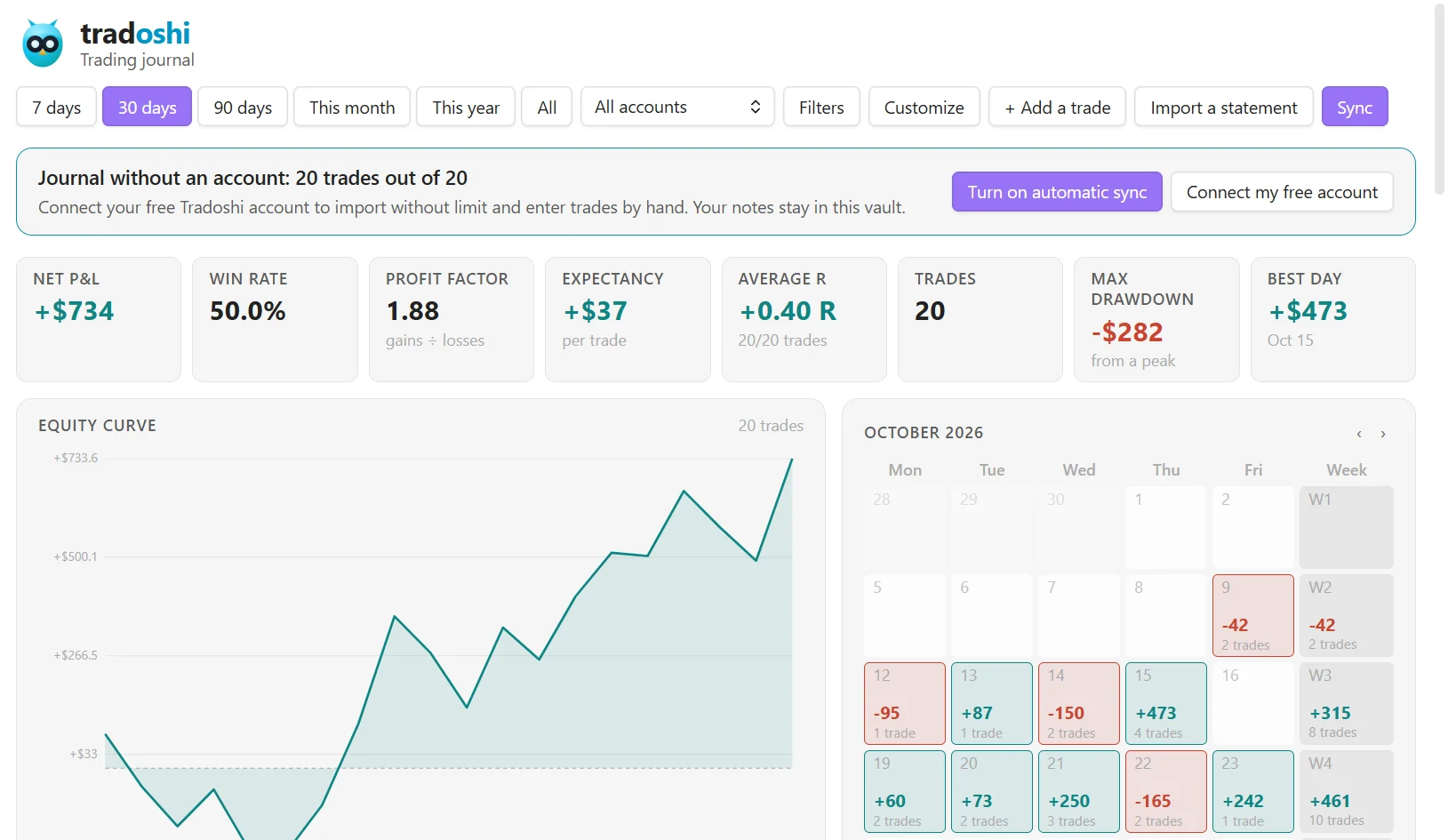
    Without an account, your vault takes up to 20 trades: the most recent ones of your statement. Connect your free account to import without limit and enter trades by hand.

    The Import a statement window in Obsidian, with the trades found in a MetaTrader report, the account name and the currency
    Before: the import window.
    The Tradoshi dashboard in Obsidian after the statement was imported
    After: the statement's trades are added to the dashboard.
  5. Your notes, in your vault

    Each trade has its note, each trading day too, and one note gives the overview. They are Markdown files, kept in the Tradoshi folder of your vault, with the figures as properties.

    Write wherever you like. The plugin only touches its own part of the note and its properties, and it never renames, moves or deletes a note on its own. Moved or renamed a note? It keeps being updated where it is. Deleted it? It is not written again.

    A daily note in Obsidian, with the date, number of trades, wins, losses and result as properties
    A daily note.
    A trade note in Obsidian, with the symbol, side, result, R, entry and exit prices, stop and target as properties
    A trade note.
Pricing

What is free, what is paid

What you usePrice
The Obsidian pluginFree
The dashboardFree
Markdown notes in your vaultFree
File import: MetaTrader 4 and 5, CSV, ExcelFree
Trades entered by handFree
Trade log, trade cards, the figures of day reports and reviews, setups and accountsFree
Sync with Tradoshi: your trades arrive on their own, from your broker and from the appFrom the Essential plan
Written check-in, review questions, discipline and goalsFrom the Essential plan
Prop firm challenge tracking and backtest tradesFrom the Pro plan
Session mode and its trade gatePremium plan
The trial, when you sign up14 days of Premium, no card
A statement imported without an account, up to 20 tradesFree, no sign-up
The Tradoshi account, with your email addressFree, required beyond 20 trades

See all plans

Frequently asked questions

Do I need a Tradoshi account?

Not to start: without an account, you import a statement of up to 20 trades. Beyond that, and to enter trades by hand, you need a free account, created with your email address. Sync with your broker starts with the Essential plan. With no account and no statement, the plugin shows the sample journal.

I closed the “Approve Obsidian” window, what now?

Open the Tradoshi app, Settings, Obsidian section: your vault's request waits there for two hours. After that, click “Connect my free account” in Obsidian again.

Where can I suggest an improvement?

On the Tradoshi forum, in the Ideas section: every suggestion is read. The link is also in the plugin, Settings, Improvements section.

Does my data leave my computer?

Your notes, never. An imported file is read on your computer and nothing is sent. With automatic sync, your trades come from your broker through Tradoshi, which keeps a copy stored in Europe, and a full copy reaches your vault. The details are on the Data security page.

Does it work offline?

The dashboard does: it is computed on your computer from the notes in your vault. Sync, on the other hand, needs a connection.

What about my phone, with Obsidian mobile?

The plugin installs on Obsidian mobile too: it only uses the Obsidian API, with nothing specific to the desktop version.

What happens if I stop using Tradoshi?

Your notes stay in your vault, and they stay yours: they are Markdown files you keep, edit or move as you like. The plugin never deletes a note on its own.

Can I edit the notes?

Yes. Write wherever you like: the plugin only touches its own part of the note and its properties. It never renames, moves or deletes a note on its own, and a note you moved or renamed keeps being updated where it is.

Can I enter my trades by hand?

Yes, for free. The form computes the result and the R from the prices, the size and the point value. You can also log a missed trade, or a backtest trade with the Pro plan: it stays in your journal without counting in your figures. These trades stay in your vault.

Does the plugin track my prop firm challenges?

Yes. You set your firm's rules (profit target, static or trailing maximum loss, daily loss, minimum days, consistency), phase by phase, and the plugin checks them on your trades: margin left, rules at risk, target reached, payouts. Starting profiles exist for the big firms, to check against their current rules. Challenge tracking is part of the Pro plan, as in the app.

Which brokers are supported?

With automatic sync, over 2,000 brokers and prop firms: the list is on the Supported trading platforms page. By file, a MetaTrader 4 or 5 report (.html), any CSV or an Excel file, with columns recognised in English, French, Spanish and Portuguese that you can correct.
Your journal, in your vault

The plugin is free, and so is the account.