Before you start
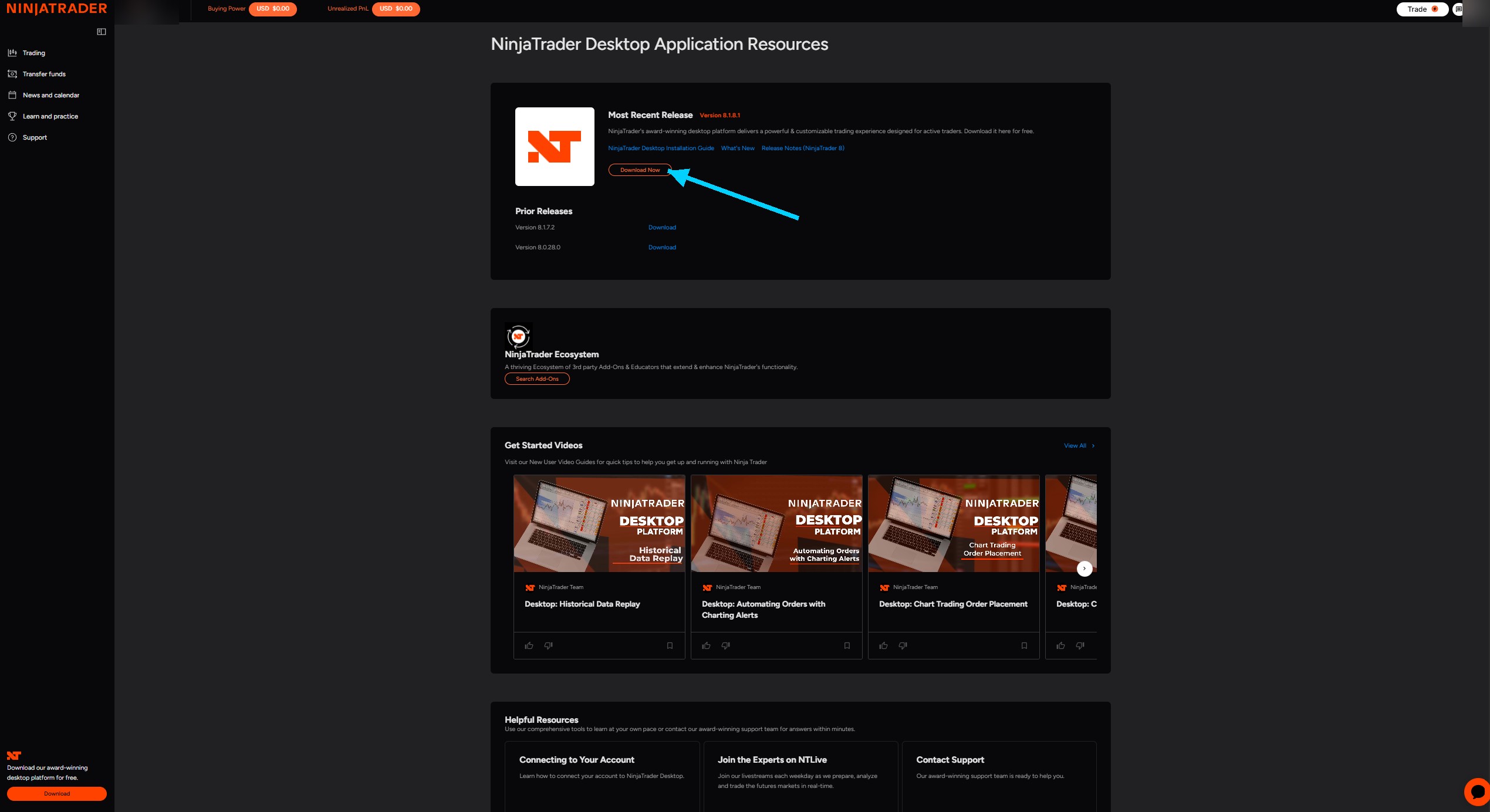
- You need NinjaTrader 8 installed on your computer (the free version is enough, a simulation account works too). Download NinjaTrader 8 (free) →
- This setup happens on the computer running NinjaTrader, not from a phone: NinjaTrader 8 is Windows software and the add-on has to be dropped into its folders. Once it's in place your trades flow in on their own, and you get them on your other devices after a sync.
- Trading from several computers? Install the add-on and the same configuration file on each one: they all push to the same Tradoshi connection.
- Unlike a regular broker, NinjaTrader has no cloud API: your own NinjaTrader sends the trades. It must therefore be running for syncing to happen.
- The add-on is read-only: it sends data, it never places an order.
Create your connection in Tradoshi
In Tradoshi: Import / Connect → + Add an account → NinjaTrader, name your machine (e.g. “My PC”) then click Generate my NinjaTrader connection.
The screen then shows two download buttons. Grab both files:
TradoshiExporter.cs— the add-ontradoshi.txt— your configuration, your token is already inside (nothing to retype)
Drop the add-on into NinjaTrader
Close NinjaTrader, then place TradoshiExporter.cs in this folder on your computer:
Documents\NinjaTrader 8\bin\Custom\AddOns\
Tip: in Windows Explorer, type %USERPROFILE%\Documents\NinjaTrader 8\bin\Custom\AddOns in the address bar to jump straight there.
If your Documents folder syncs with OneDrive, the “NinjaTrader 8” folder lives under OneDrive\Documents\ — that is the one to use.
Drop in your configuration
Place the tradoshi.txt file at the root of your NinjaTrader folder:
Documents\NinjaTrader 8\tradoshi.txt
This file holds the destination address and your personal token. Keep it private: it identifies your Tradoshi account.
Running several NinjaTrader accounts?
By default the add-on exports every account visible in your platform (simulation, prop firm, live) into this Tradoshi connection.
To export only some of them, add an accounts= line to your tradoshi.txt, using the exact names shown in NinjaTrader, comma separated:
accounts=Sim101,APEX-123456
Without that line, everything is exported. That is the right setting if you only trade one account.
Restart NinjaTrader
Reopen NinjaTrader. It compiles the add-on by itself at startup, then the add-on sends your whole history once, and every new execution in real time after that.
You can check compilation under New → NinjaScript Editor: any error shows at the bottom.
Keep NinjaTrader open while you trade. It is the one sending your executions to Tradoshi: closed, it sends nothing. Closing it overnight is fine — it catches up when you reopen it.
Haven't traded yet? Seeing 0 trades is expected. The add-on still sends your account name and its balance within the minute: that is your proof the connection works.
Come back to Tradoshi and sync
On the NinjaTrader row under Import / Connect, click Sync. Your executions get paired into trades (entry/exit, fees, net result) and your journal fills up.
Troubleshooting
- Nothing shows up: check NinjaTrader is running and connected to a data feed. It does the sending; Tradoshi never fetches.
- The
AddOnsfolder doesn't exist: launch NinjaTrader once so it creates the full folder tree, close it, then redo step 2. - “Unable to compile custom assembly” at startup: check the size of your
TradoshiExporter.csfirst. It should be around ten kilobytes. If it is 3 or 4 KB, the download failed: get it again from the app, replace the file and restart NinjaTrader. - Compilation error at startup: make sure you copied the
.csfile as-is, without renaming it or letting an editor re-save it in another format. - Trades land on the wrong account: the add-on exports all your NinjaTrader accounts. Add the
accounts=line totradoshi.txtto pick which ones (see above). - Lost your token: it's shown only once. Delete the connection in Tradoshi, create it again, and download the configuration file afresh.
Security: what Tradoshi can and cannot do
- Tradoshi never knows your NinjaTrader or broker credentials: the add-on only sends executions that already happened.
- Read-only: impossible to place orders, touch your funds or change your account.
- Your token is never stored in plain text on our side: we only keep a fingerprint, which cannot be reversed.