 By Benjamin Roure L'Hermitte

A Notion trading journal is a Notion page that holds a database with one row per trade, a few well-chosen properties, and several views of the same data. You can build it yourself for free, in one sitting. This guide gives you the full structure: the two databases, the properties and their types, the views, and the formulas for R and win rate. Its weak point is the filling, because every trade is typed by hand. The last part shows how the Tradoshi Notion integration creates the same template in your workspace for free, and fills it from your broker from the Essential plan.
- Two databases do the job: Trades, with one row per trade, and Journal, with one page per trading day.
- Property types matter more than names: Select for the instrument and the account, Number for prices and P&L, Date for the open and the close.
- Four views cover a review: all trades, a calendar, a board by account and an equity curve.
- Notion's free plan is enough, with one limit: a single chart per workspace.
- Manual entry is the weak point: Tradoshi creates the template for free and fills it from your broker from the Essential plan.
Notion is good at what a journal needs most: writing, linking and finding things again. A trade becomes a page. You paste a screenshot into it. You write what you saw, and you link it to the plan of the day.
Notion is not a trading tool, though. It knows nothing about your broker, your fees or your stop. Whatever the template, a Notion journal holds what you type into it, and nothing else.
This guide is useful whether or not you ever use Tradoshi. The first sections describe a structure you can rebuild by hand in any Notion workspace. The last ones explain how a free trading journal template for Notion can be created for you, then kept filled without typing.
TL;DRBuild a Trades database (Instrument, Side, Account, Opened, Closed, Entry price, Exit price, Volume, P&L, Commission, Swap, Stop loss, Take profit, Risk, R, Win, Emotion, Rating, Followed plan, Tags, Review) and a Journal database with one page per day. Add four views: All trades, Calendar, By account and Equity curve. Notion's free plan is enough, except that it allows one chart per workspace. Tradoshi creates this template in your workspace for free, and fills it from your broker from the Essential plan.
What a Notion trading journal is, and what it is not
In Notion, a database is a collection of pages that share the same properties. Each row of the table is a page. You open it and write inside, like any other Notion page. That is what makes Notion pleasant for a trading journal: the numbers sit in the row, and the story of the trade sits in its page.
A view is a way of looking at the same database. A table, a calendar and a board can show the same trades. Each view keeps its own filters, sorting and grouping. Change a trade in one view, and it changes everywhere.
What Notion is not: a calculator connected to your account. It does not fetch trades. It does not read a statement. It does not compute your risk on its own. Its formulas work row by row, on what you entered, and its charts summarise a property you filled in.
That works well if you take a few trades a week and like writing. It gets harder with several trades a day, several accounts, or commissions and swaps that change the real result.
The structure: two databases, not one
Most Notion templates start with a single table of trades. It works until you want to write about a day rather than a trade. A plan written before the session does not belong to any single trade. Neither does a review written after it, or a note on a news release.
Two databases solve it. The Trades database holds one row per closed trade. The Journal database holds one page per trading day, with your plan and your review.
Put both on the same Notion page, one under the other, as inline databases. Your journal then opens on a single page. Each database keeps its own views.
You can link the two with a Relation property in Trades that points to Journal. Each trade then shows its day, and each day lists its trades. A Rollup on that relation can sum the P&L of the day's trades. This step is optional, because a filter on the date does most of the job.
The properties of the Trades database
Properties are the columns of your table. Their type matters more than their name. A Select can be grouped and filtered. A Number can be summed. A Date can feed a calendar. A plain text field can do none of that.
Here is a complete set, in the order a trader reads a trade. It is the set Tradoshi uses in its own Notion template. You can start by hand and switch later without changing your habits.
| Property | Notion type | What it is for |
|---|---|---|
| Trade | Title | The row's name, for example "XAUUSD Long" |
| Instrument | Select | Group and filter by market |
| Side | Select (Long, Short) | Compare your longs with your shorts |
| Account | Select | Keep a challenge apart from a live account |
| Opened, Closed | Date, with the time | Feed the calendar and sort the trades |
| Entry price, Exit price | Number | Check the execution later |
| Volume | Number | Lots, contracts or shares |
| P&L | Number | The result of the trade |
| Commission, Swap | Number | The costs, which change the real result |
| Stop loss, Take profit | Number | The plan at entry |
| Risk | Number | The money lost if the stop is hit |
| R | Number or Formula | The result in units of risk |
| Win | Checkbox | Count the winners and read the win rate |
| Emotion | Select | Your state before or during the trade |
| Rating | Number | Your score for the execution |
| Followed plan | Checkbox | Did the trade follow your rules? |
| Tags | Multi-select | Setups, mistakes, sessions |
| Review | Text | One line on what to keep or change |
Three choices make the difference later. Use a Select for the instrument and the account, never free text: "EURUSD" and "EUR/USD" would become two markets. Give Opened and Closed a time, not just a day, if you trade intraday. And decide once whether P&L is gross or net of costs.
Keep the emotion list short. Five or six options you actually pick beat twenty you never use. The same goes for tags. A tag that appears on two trades a year will never tell you anything.
The page of each trade is where the rest goes. Paste the chart at entry and at exit. Write why you took the trade, and what you would do differently. Those pages are what makes a Notion journal worth rereading.
Two formulas: R and win rate
R is the result of a trade divided by what you risked on it. A trade that gains twice its risk is +2 R. A trade stopped at its planned stop is −1 R. It is the measure that lets you compare trades of different sizes, as our glossary entry on the R-multiple explains.
In Notion, create a Formula property named R, and write round(prop("P&L") / prop("Risk"), 2). The prop() function reads another property of the same row. The round() function with a second argument keeps that many decimals. Both are described in Notion's formula syntax guide.
If the Risk column is empty, the formula has nothing to divide by. Fill in your risk on every trade, even a small one.
For the win rate, make Win a Checkbox and tick it on each winning trade. At the bottom of the column, in a table view, the Calculate menu can show the share of boxes ticked. That share is your win rate for the trades shown in the view.
Filter the view on one account, one month or one setup, and the win rate follows the filter. Notion's help lists Sum, Average and Median among the calculations of Number columns. On a Number column R, the average gives you the average result per trade in units of risk.
A win rate means little on its own. A high win rate with large losses still loses money. Read it next to the average R, never alone.
The views: four ways to read the same trades
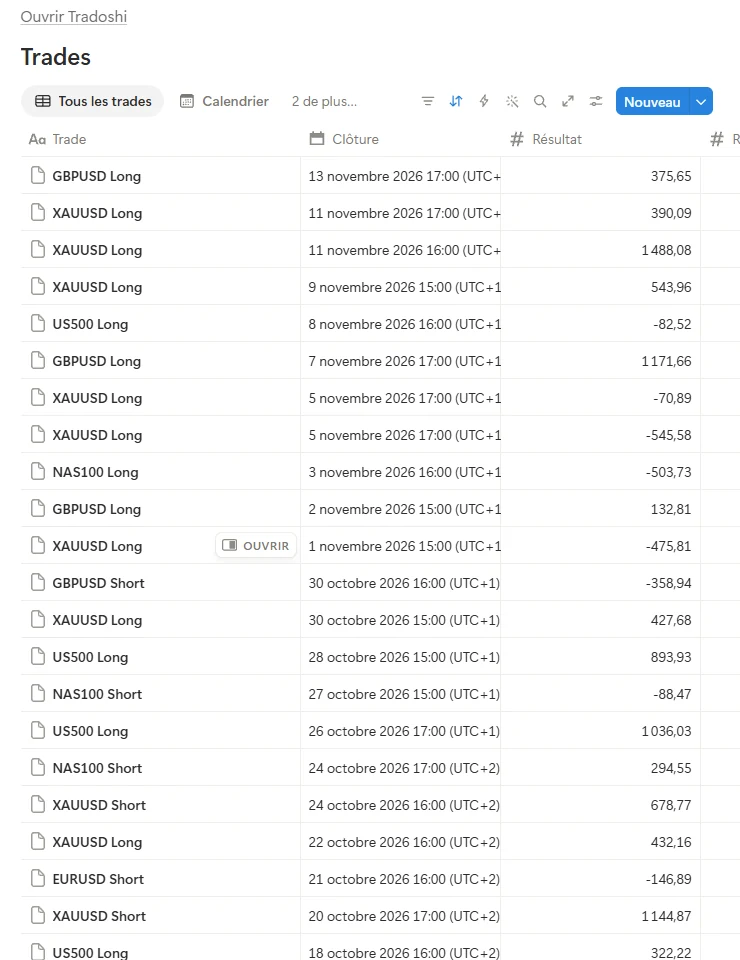
All trades
A table sorted by Closed, newest first. Put the columns in the order you read a trade: Trade, Closed, P&L, R, Win, Account, then the rest. Hide what you rarely read, since it stays available in the trade's page.
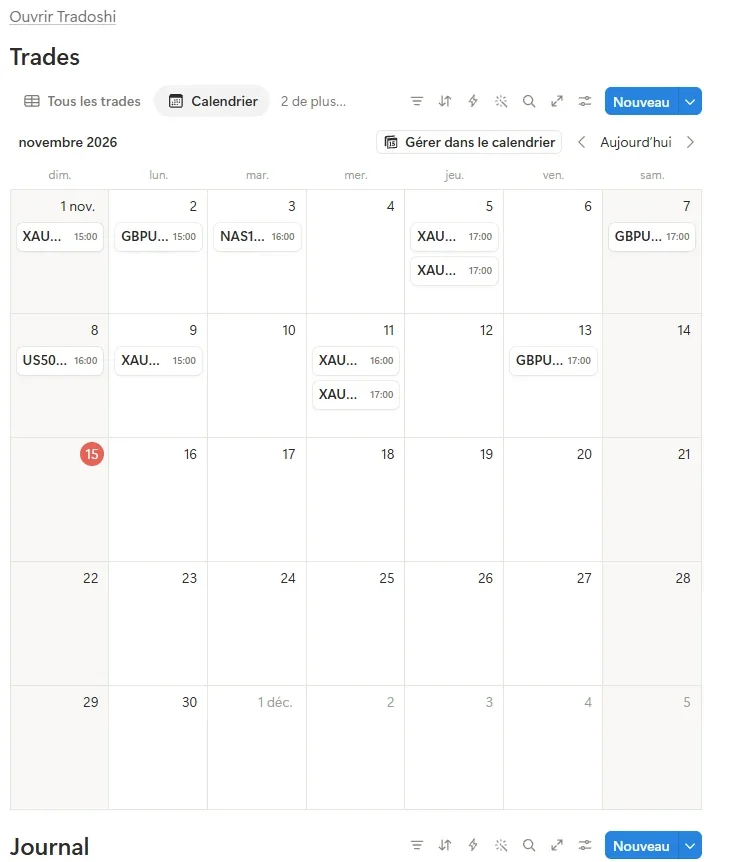
Calendar
A Calendar view placed on the Closed date. Each trade appears on its closing day, and one click opens its page. You see at a glance which days you traded, and how often.
A calendar of trades is not yet a calendar of daily results. For that reading, see our guide to the P&L calendar.
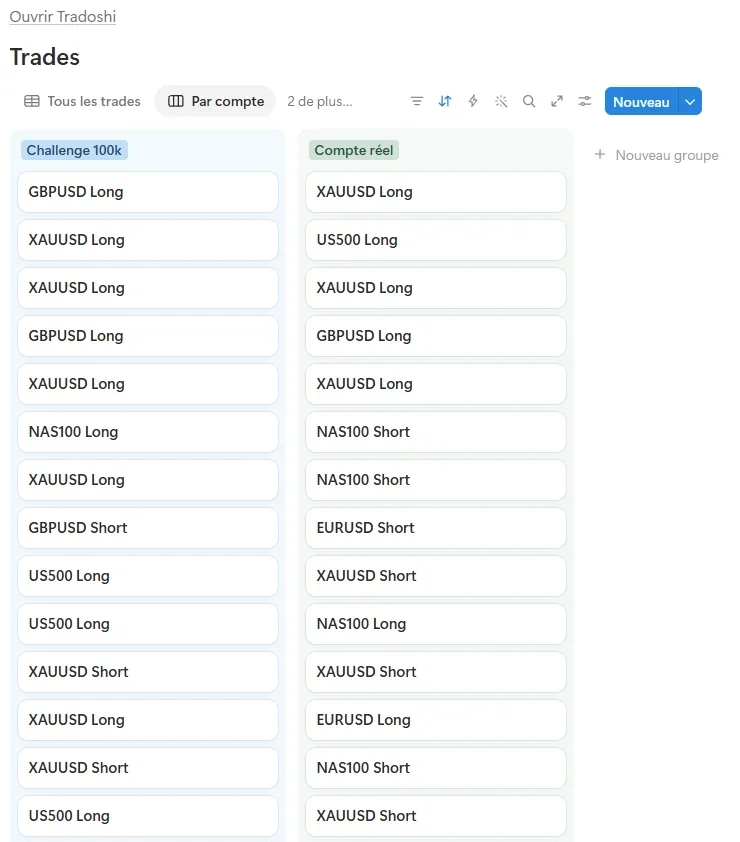
By account
A Board view grouped by Account. Each account gets a column: your challenge on one side, your live account on the other. Their rules differ, and mixing their results hides problems.
Equity curve
A Chart view of the line type, with Closed on the X axis grouped by day, and the sum of P&L on the Y axis. Turn on Cumulative. The line then shows the running total of your results, which is your equity curve.
Notion only offers Cumulative when the chart shows a count or a sum, with the X axis sorted in ascending order. On the free plan, you can create one chart, as Notion's chart view help page states. If your workspace already uses it, this view stays empty.
The Journal database: one page per trading day
The Journal database needs only two properties: a title with the day, and a Date. Everything else goes inside the page.
Before the session, write your plan. List the markets you watch, the levels, the news of the day and your maximum loss. After the session, write the review. Note what you did, what you skipped, and what you would do again.
Keep the same three or four headings every day. Reviewing a month then means reading the same section day after day, rather than hunting through free text.
Our guide to keeping a useful trading journal details what to write, and what to leave out.
A weekly review with these views
A journal only pays off when you reread it. Once a week, five steps are enough.
- Duplicate the All trades view and filter it on the past week's Closed dates.
- Sort it by R, lowest first, then open the three worst trades and read their pages.
- Look at the Followed plan column, and at the share of boxes ticked at its bottom.
- Open the By account board, or group the table by Tags, to see where the losses come from.
- Write the conclusion in the Journal page of the day: one thing to keep, one thing to change.
The figures worth following over time are few. Our guide to the trading statistics that matter explains which ones, and how many trades they need before they mean something.
Filling a Notion journal by hand: what it costs
A hand-filled journal asks for one routine. After each session, you open the statement and copy every closed trade.
You copy the entry and exit prices, the volume, the P&L, the commission and the swap. A trade closed in several parts needs either one row per part or a careful average.
Mistakes happen at that step. A swap is forgotten here, a commission counted twice there. Week after week, the statistics drift away from the account.
The bigger risk is not the time it takes. It is the trade you would rather not see again. After a bad day, that is the trade that never gets its row. Nothing in Notion tells you a row is missing.
If you keep a hand-filled journal, two habits help. Each week, compare the sum of the P&L column with your account statement. And log a losing day first, before you feel better about it.
If you prefer formulas in cells to pages, a spreadsheet handles the calculations better. Our Excel trading journal template covers that route.
Filling it automatically: the Tradoshi Notion integration
Notion cannot read a broker statement. Tradoshi can. It connects to your broker or prop firm in read-only mode and imports your trades. It can also write them into your Notion.
The Notion integration of the Tradoshi Trading Journal creates the journal in your workspace, with the structure described above. You get the Trades database, the Journal database and the four views. From the Essential plan, it keeps them up to date on its own.
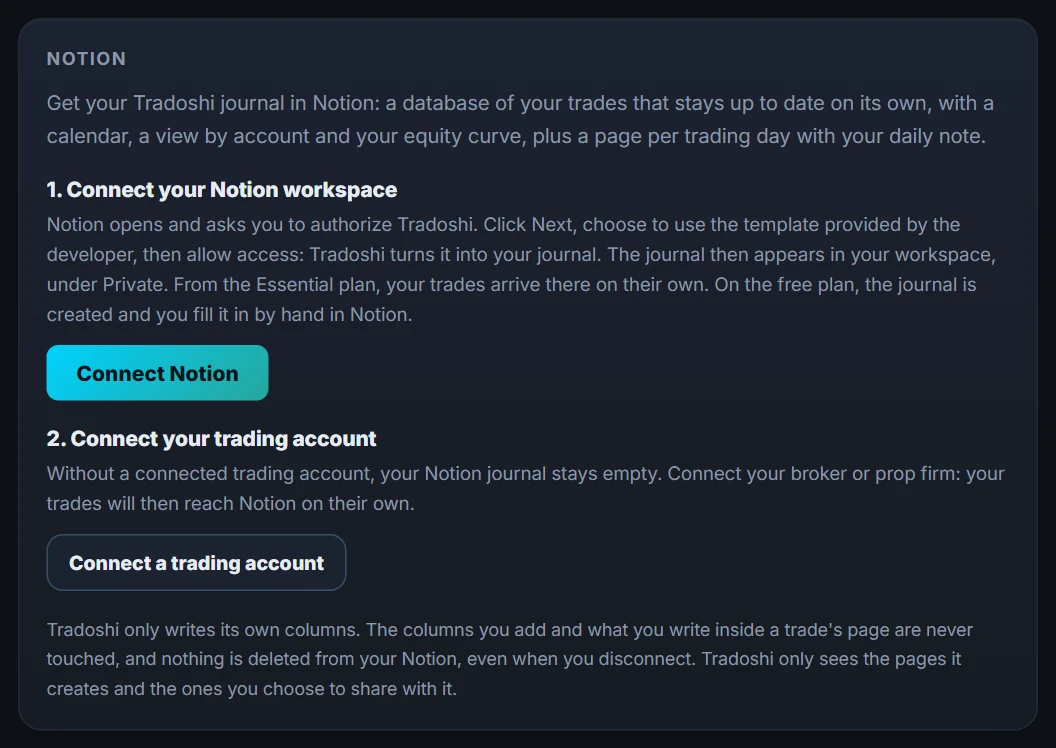
Connect Notion in three steps
- In the Tradoshi app, open Settings › Notion, then click Connect Notion. If you do not have an account yet, create a free one with your email address.
- Notion opens and asks you to authorise Tradoshi. Pick your workspace at the top right, then click Next. Choose to use the template provided by the developer, then allow access.
- Notion copies the page into your Private section. Tradoshi turns it into your journal, titled "Tradoshi · Trading journal".
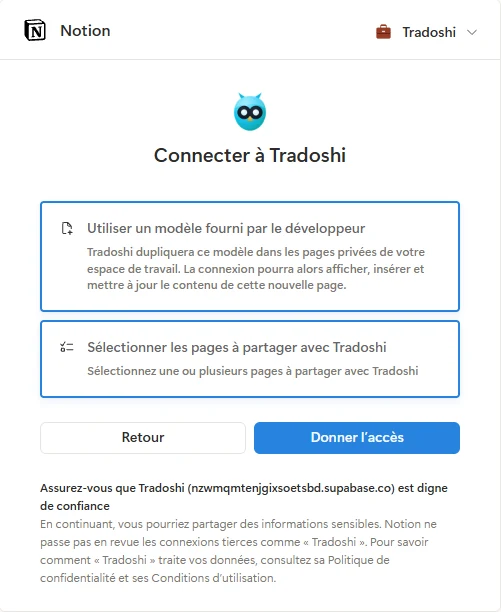
How the trades arrive
Your trades come from the accounts connected in Tradoshi. More than 2,000 brokers and prop firms are supported, MetaTrader 4 and 5 included. The list is on the Brokers page. With no trading account connected, your Notion journal stays empty.
The first sync sends your trades newest first. A history of several thousand trades is complete within one to two hours.
After that, the journal updates about every hour. The Sync now button, in Settings › Notion, starts a sync whenever you want. The same screen shows how many trades are already in Notion, and the time of the last sync.
Tradoshi fills R as the P&L divided by the money at risk, when the trade has one. It ticks Win when the P&L is positive. Commission and swap are copied as Tradoshi received them from your account.
The daily notes you write in Tradoshi go into the Journal database, one page per day. An image pasted into a note stays in Tradoshi. The day's page in Notion carries a mention in its place.
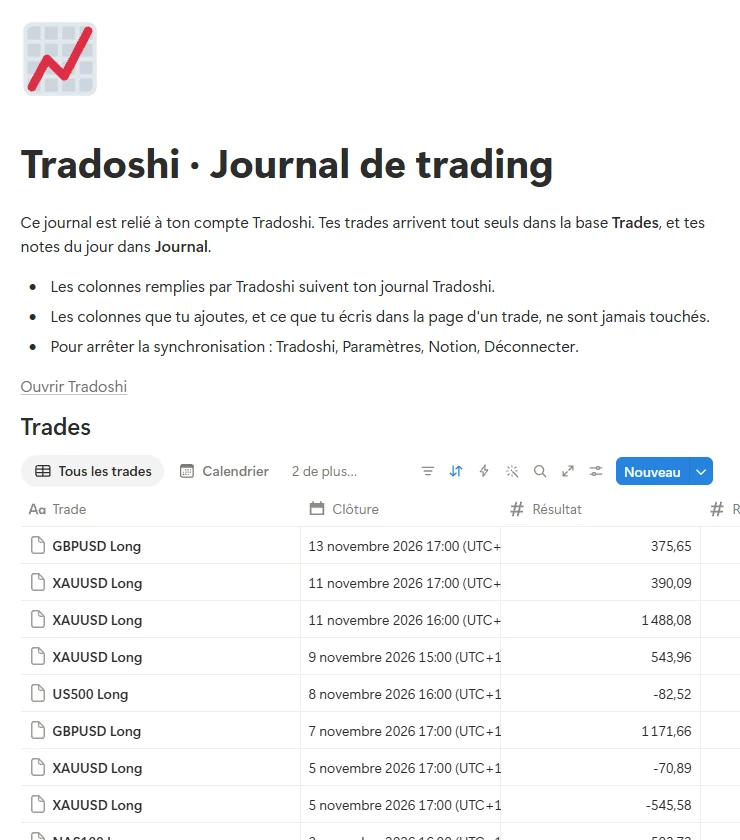
What Tradoshi writes in your Notion, and what it never touches
- It only writes its own columns. Tradoshi finds them even if you rename them. The columns you add, and what you write inside a trade's page, are never touched.
- It deletes nothing. A trade removed from your Tradoshi journal keeps its page in Notion. A page you delete is not recreated.
- Your edits win. A daily note you edit in Notion is no longer overwritten.
- It only sees its own page. Notion gives Tradoshi the page copied during authorisation, and any page you choose to share with it. Tradoshi does not ask for your Notion email address.
- You can leave at any time. Disconnect from Settings › Notion in Tradoshi, or from Settings › Connections in Notion. Your journal stays in your Notion.
You can therefore add your own Relation to the Journal days, your own formula columns, or a screenshot in each trade's page. Tradoshi writes around them.
The access token Notion gives Tradoshi is encrypted. The details are in the privacy policy.
What is free, what is paid
| What you use | Price |
|---|---|
| The Notion connection and the journal created in your workspace | Free |
| The journal filled in by hand in Notion | Free |
| Your trades and daily notes sent to Notion on their own | From the Essential plan |
| The trial, at sign-up | 14 days of Premium, no card |
| Notion | Its free plan is enough |
On Tradoshi's free plan, you get the template described in this guide, created in your workspace. You fill it in by hand.
The trial lets you see the automatic filling on your own trades, since it includes the Notion sync. The plans are compared on the pricing page.
Notion, Obsidian or the journal itself?
A trading journal in Notion suits traders who already organise their work there. The journal then sits next to the trading plan, the market notes and the reading list.
If you keep your notes in Obsidian, Tradoshi also has a free Obsidian plugin. It writes your journal as Markdown notes in your vault.
If you would rather not keep a second tool, the Tradoshi Trading Journal computes the statistics on the same trades, without a Notion page in between. Our comparison of free trading journals shows what each free option limits.
Whichever you pick, the structure in this guide stays valid. Two databases, typed properties, four views and a weekly review make a journal you will actually reread.
Frequently asked questions
Is there a free Notion trading journal template?
Yes. You can build one yourself with the structure in this guide: a Trades database, a Journal database and four views. Tradoshi also creates this template in your Notion workspace for free, and on the free plan you fill it in by hand.
Can a Notion trading journal update automatically?
Not on its own, since Notion does not connect to brokers. With the Tradoshi Notion integration, your trades arrive on their own from the Essential plan, and during the 14-day trial. The journal then updates about every hour.
Do I need a paid Notion plan for a trading journal?
No, Notion's free plan is enough. Its only limit here is the chart: the free plan allows one chart per workspace, so the equity curve view stays empty if the chart is already used.
Which brokers can fill a Notion trading journal?
Every account connected in Tradoshi. More than 2,000 brokers and prop firms are supported, MetaTrader 4 and 5 included.
Can I add my own columns to the Tradoshi template in Notion?
Yes. Tradoshi only writes the columns it created, and finds them even if you rename them. Your columns and the content of each trade's page stay yours.
What happens to my Notion journal if I disconnect?
Tradoshi stops writing to your workspace, and its access is removed. Your journal stays in your Notion, and nothing is deleted.
Notion or Excel for a trading journal?
Notion is better for notes, screenshots and one page per trade. A spreadsheet is better for calculations across many rows. Many traders keep the numbers in one tool and the notes in Notion.